
Over the past couple of months, SnekLog has been getting a rebuild from the ground up. A complete rebuild of the entire codebase, a new hosting infrastructure, a new deployment strategy, all of it. It's finally entered the final stages of being feature complete and I'm ready to share all the juicy details.
While the last few dev updates covered parts of the individual components as they were being built, this post is going to do a deep dive into just about everything this reborn version of SnekLog has to offer.
A New Look
The User Interface as a whole was one of the biggest things that was reworked. Not only to clean it up and give it a more modern feel, but also to make a more "mobile forward" interface so that when the iOS and Android native apps get released (this will come after the new WebApp is live), everything can basically use the same elements and codebase.
The inspiration for the UI is kind of our reptile rooms at night, with just a little bit of extra light and color. This allows the animal collection to be center stage. The only colors that really pop are the ones for the notifications and "status alerts" for each animal.
The accent colors are coral for feeding, pink for medications, amber for cleaning, violet for shed, and sky blue for weight. These colors remain consistent thoughout the app with the hope being that before long you read the screen by color instead of by label.
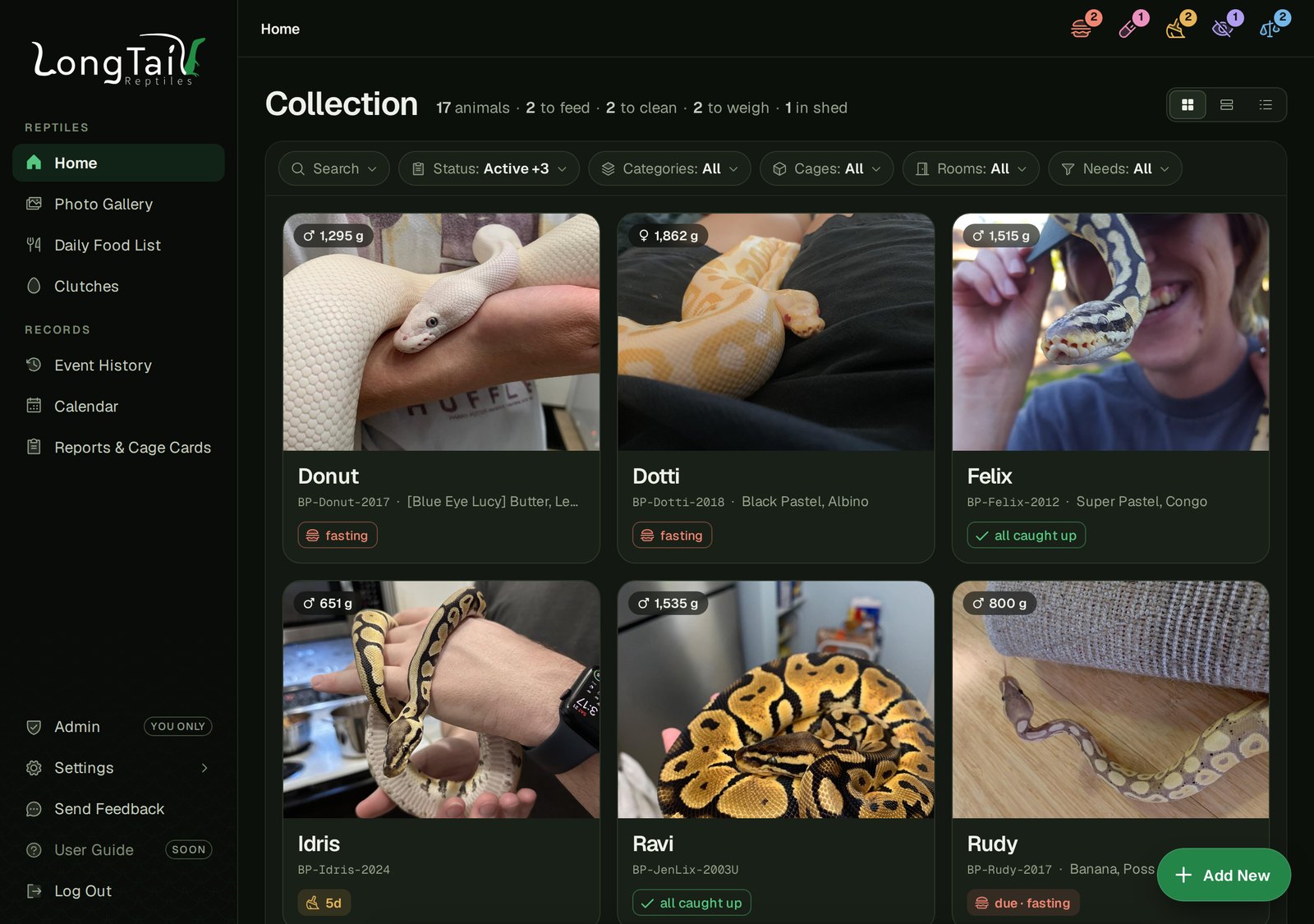
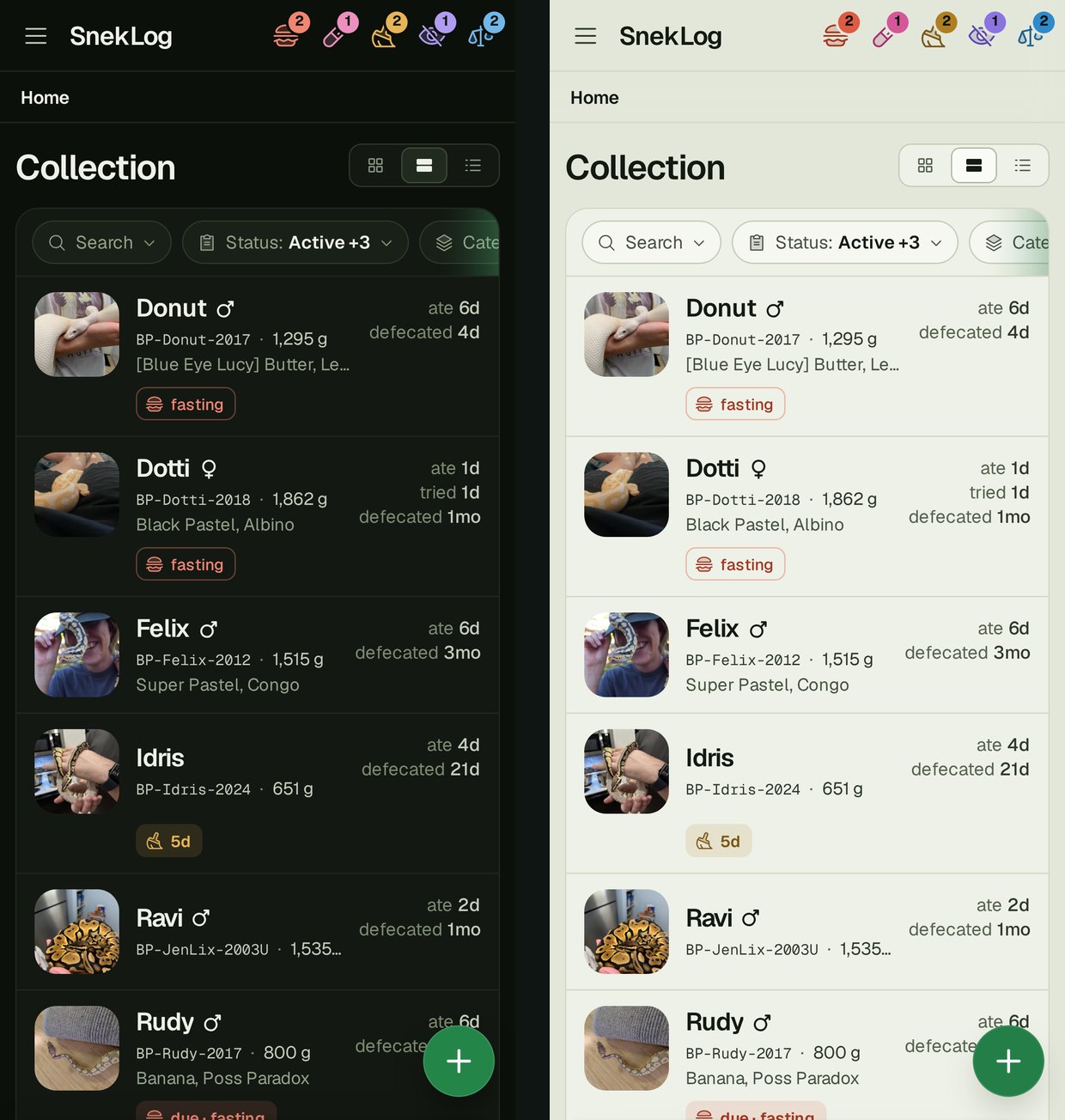
Even though it was rarely used, the light theme will also be making a return. The capability to use the "system" color scheme is present though so it can dynamically switch between dark and light based on your devices preferences.
Home
The Home screen has recieved a lot of care and has become much more powerful than it ever was before. In the legacy app, filtering was clunky and you had no ability to search. Mostly it felt like it was just a way to navigate to each individual animal dashboard. Now, it can search and filter live, status icons are more legible and descriptive, and you can even log events straight from the home screen now (Covered in the Select & Log section). The "Cages and Rooms" page from the legacy app is gone and has been replaced with the expanded functionality of the new home screen.
The filter row has Status, Categories, Cages, Rooms and Needs. Each one applies the moment you tap it without reloading. You can mix and match the filters with ease and you can even search for animals based on nickname, ID, or morph. This is something that should really come in handy for clutches as they have a tendancy to share an ID prefix.
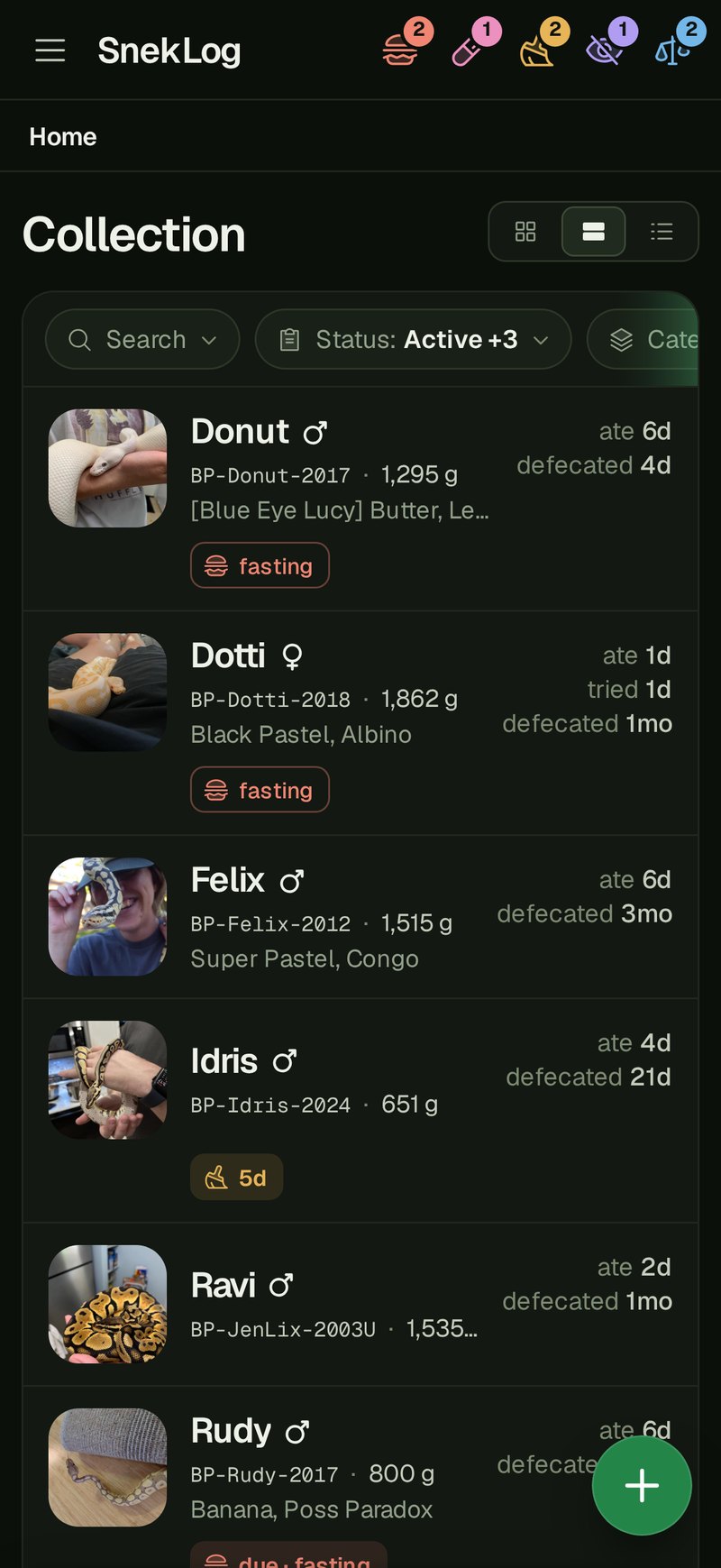
On mobile, each row shows the picture, the name with a ♂ or ♀ icon, record ID and weight, the morph, and how long since the animal last ate. If it was offered food and turned it down, the row says "tried" as well. Accounts that log defecations get a "defecated" line too.
If you prefer the more "artsy" feel of the boxes in the legacy app, you can choose between 3 views which will remember by device. Card, Tall Rows, and Short Rows. The Cards view most closely resembles the "Full" view from the Legacy app.
Needs at a Glance
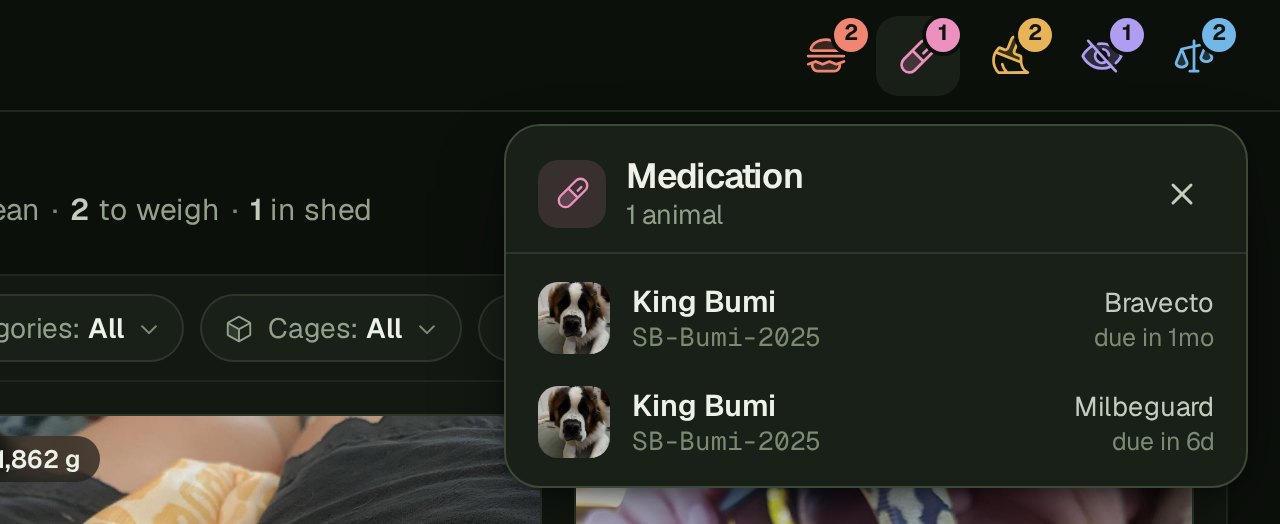
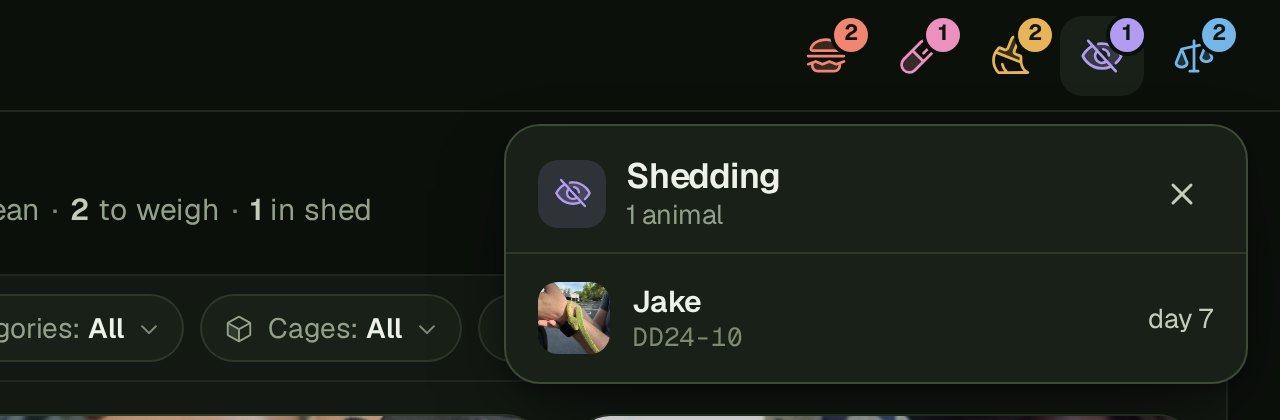
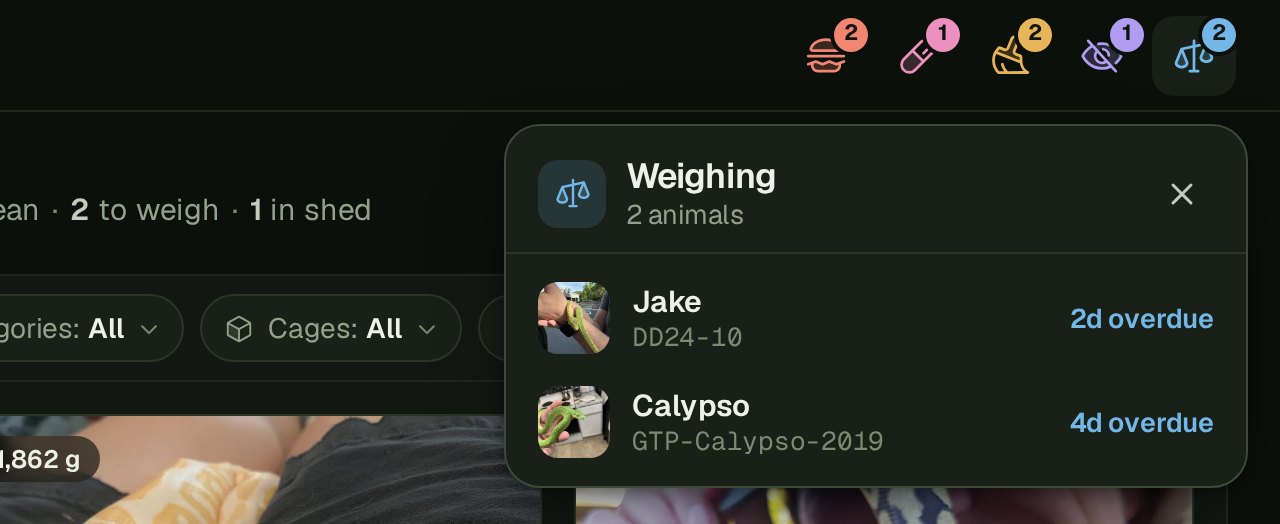
The new top bar has icons for each kind of care (Feeding, Medication, Cleaning, Shedding and Weighing) with a count on it based on what is due or upcoming. This bar is viewable from every page so you no longer have to go back to the home page to see what is due. You can tap each notification to bring up the details and from there, you can tap each animal to be taken directly to their dashboard.
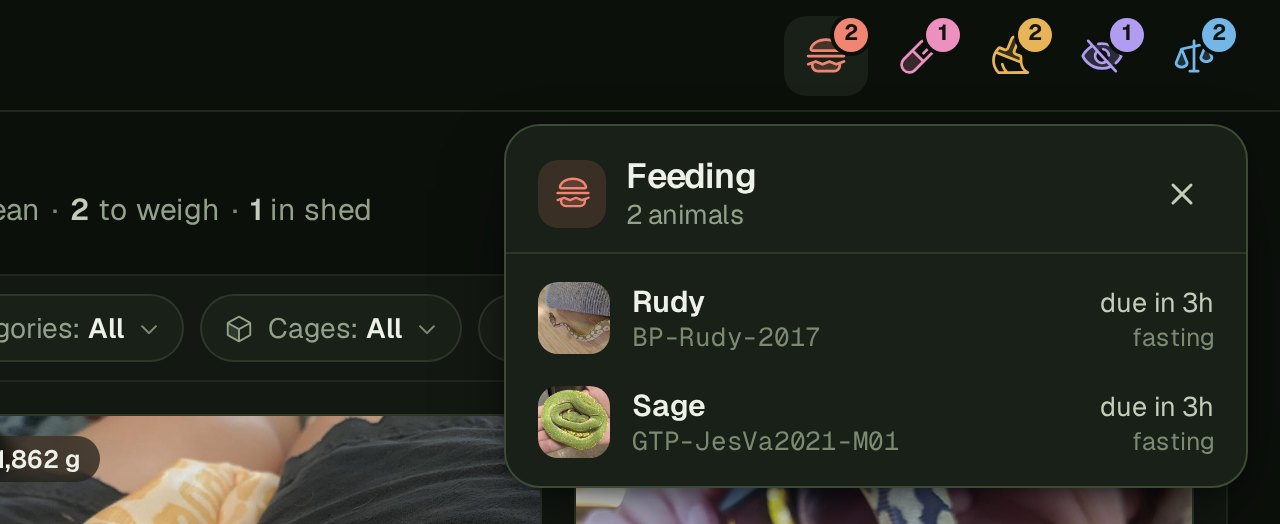
Feeding lists who is due or overdue while also showing who's fasting. Medication shows the doses due and the repeat courses coming up, like a dewormer schedule or flea treatment due in a month. While the app may be called "SnekLog" it can easily be used to keep track of recurring medications for other animals.
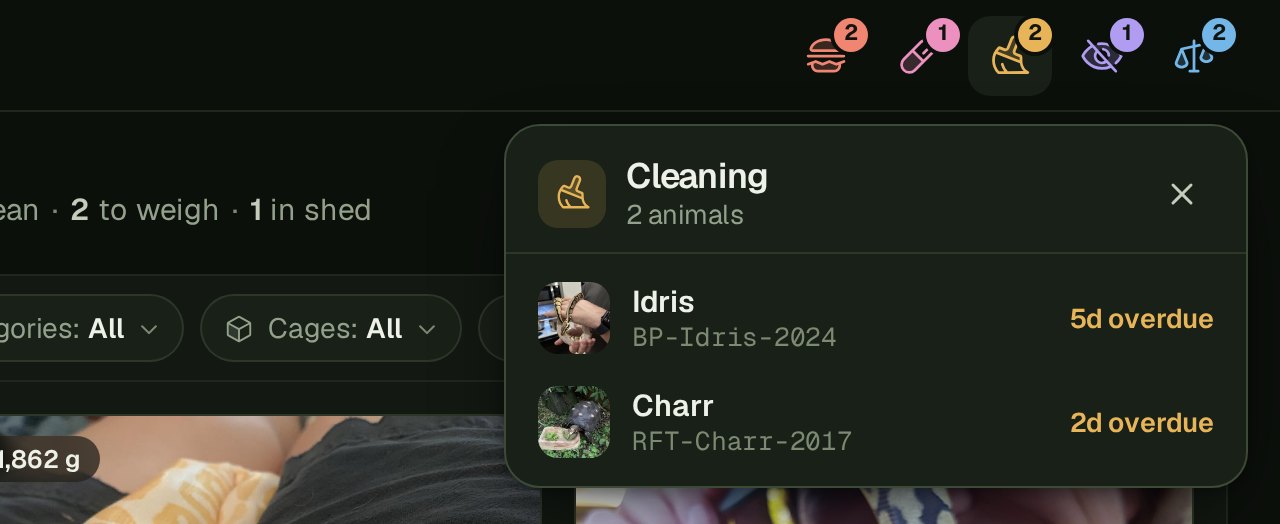
Cleaning and Weighing show who is past their interval and by how many days. Shedding is more informational in nature, showing who is in shed right now and how long they've been in their current cycle.
Select & Log
This is where the new home screen really shines. You now have the ability to quickly add events to as few or many animals as needed. Tap the + on Home, pick "Select & Log", and tick the animals you're working on. It can be one at a time, or even an entire room at once. After your selection of animals you have a handful of choices: a Quick Feed, any of your cleaning types, or a weigh-in.
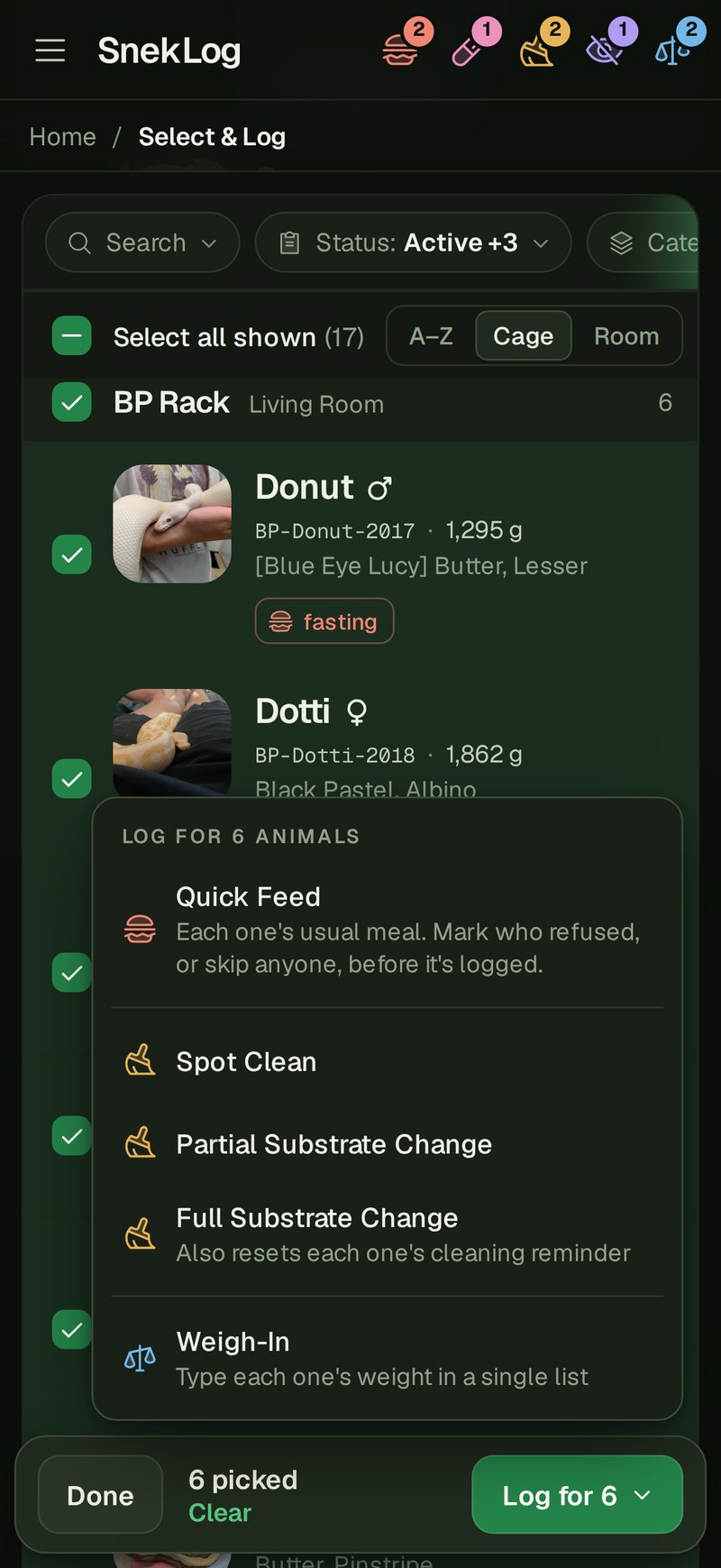
The "Quick Feed" option will automatically bring up the default food items for each animal based on their settings, but you do have the option to override if you're juggling feeders around at all. Below is a demo of this in action.
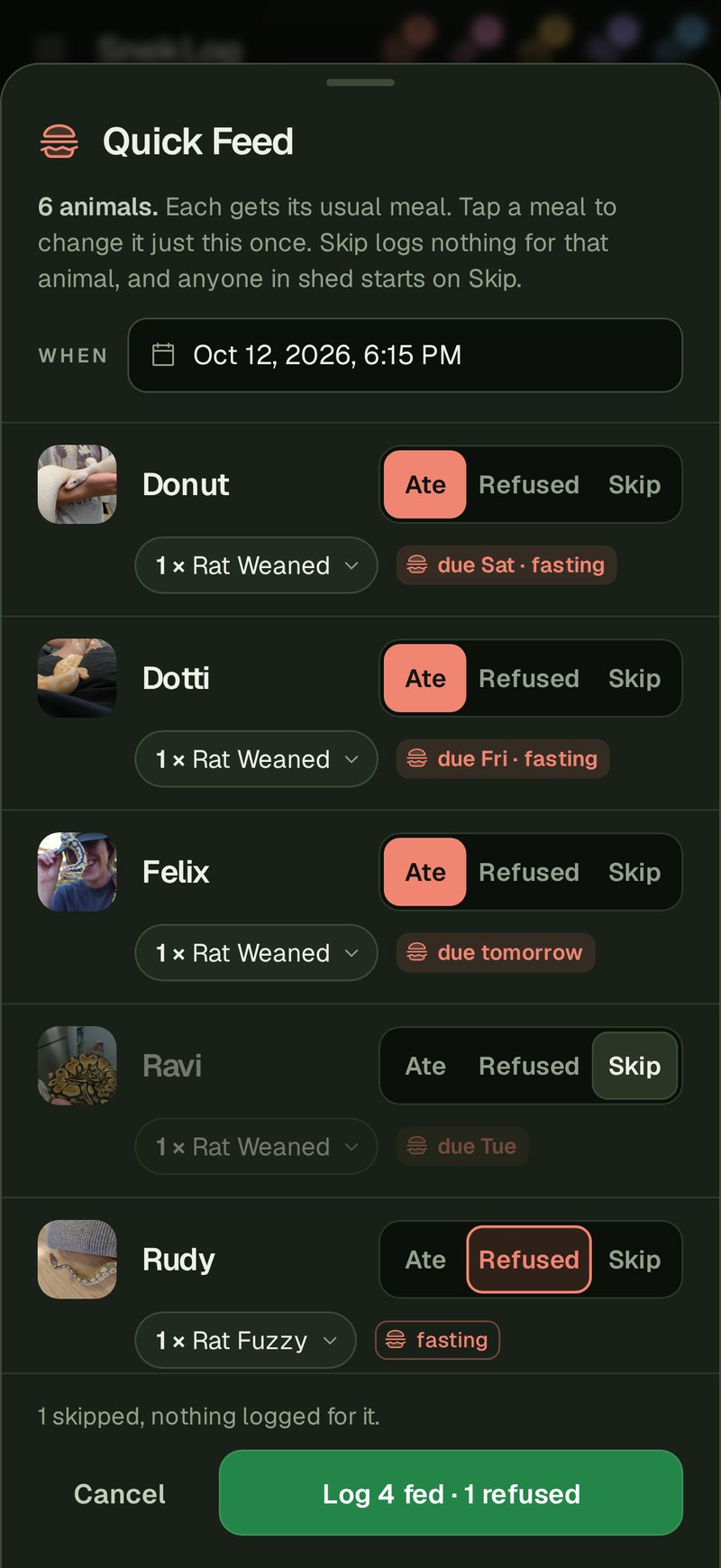
Your selection stays ticked after logging one event so if you clean a series of enclosures and feed back-to-back, you won't have to select the animals over and over. There is also an undo button just in-case you accidently log events you did not mean to.
The Dashboard
The Dashboard is the core of every animal added to SnekLog and like everything else, it's recieved an overhaul. Legacy app users will recognize that all the things that made it useful are present, but it's recieved some significant upgrades.
"Info" and "Photos" are now easy to see tabs instead of being unintitive to use and hiding behind things that are not obvious buttons.
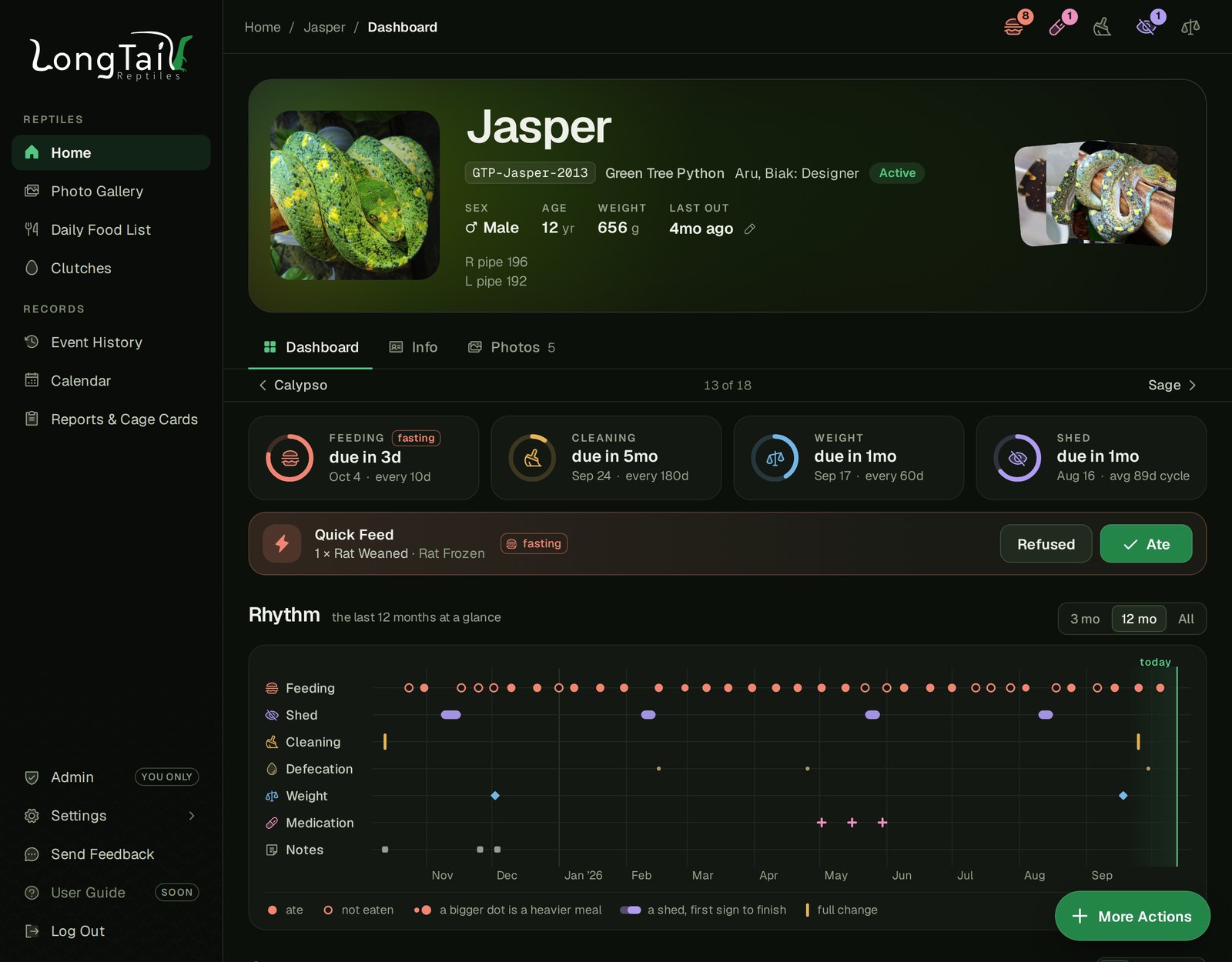
The status cards with bars have also been replaced with care dials. Each status displays as one ring per cycle (feeding, cleaning, weight, shed, medication) and multiple medications will create multiple dials so nothing is obscured. Each ring fills as the due date gets closer and reads "due in 4d", or "9d overdue" in that care's color.
The Quick Feed button is now front and center which will log the usual meal in one tap. If feeding time comes around and they didn't eat, you can click Refused and it will log the usual meal as "refused".
Rhythm
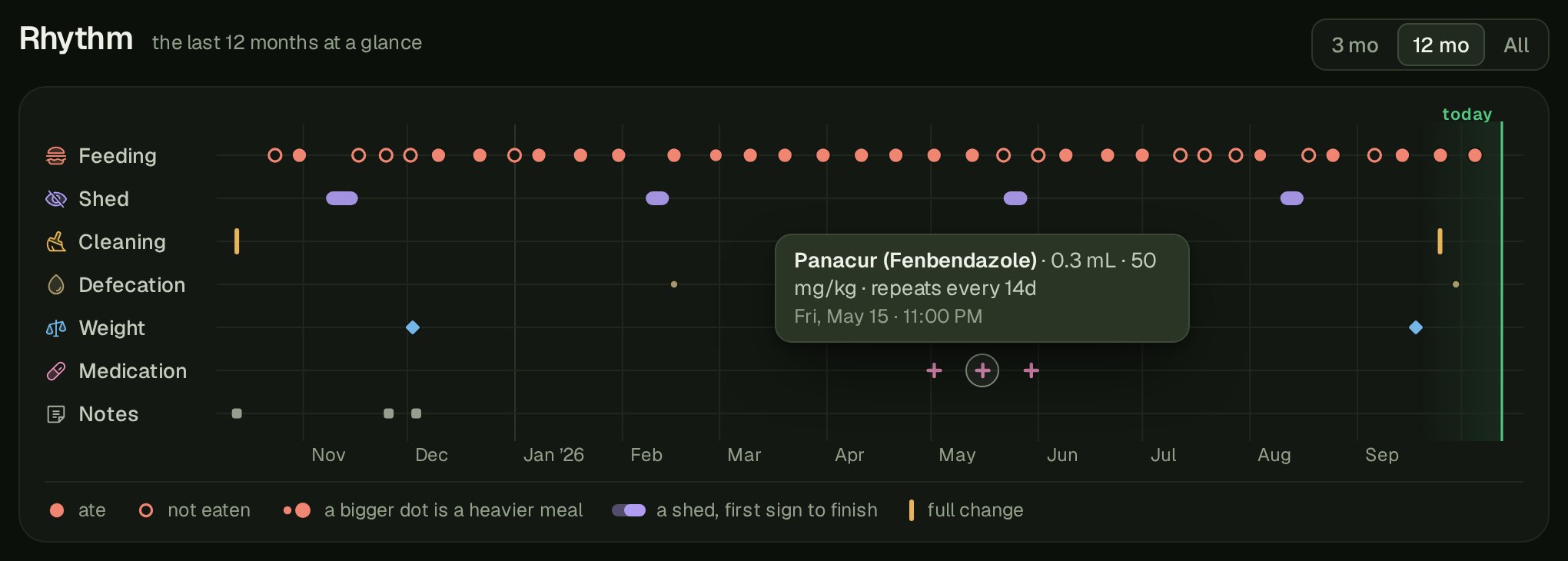
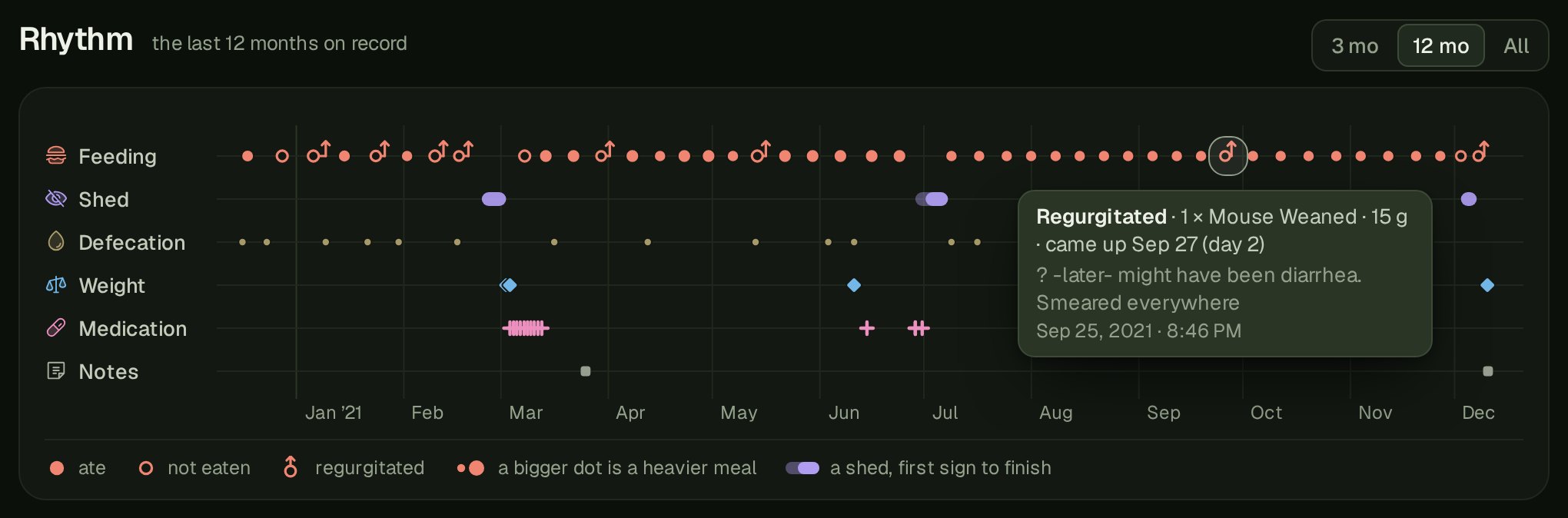
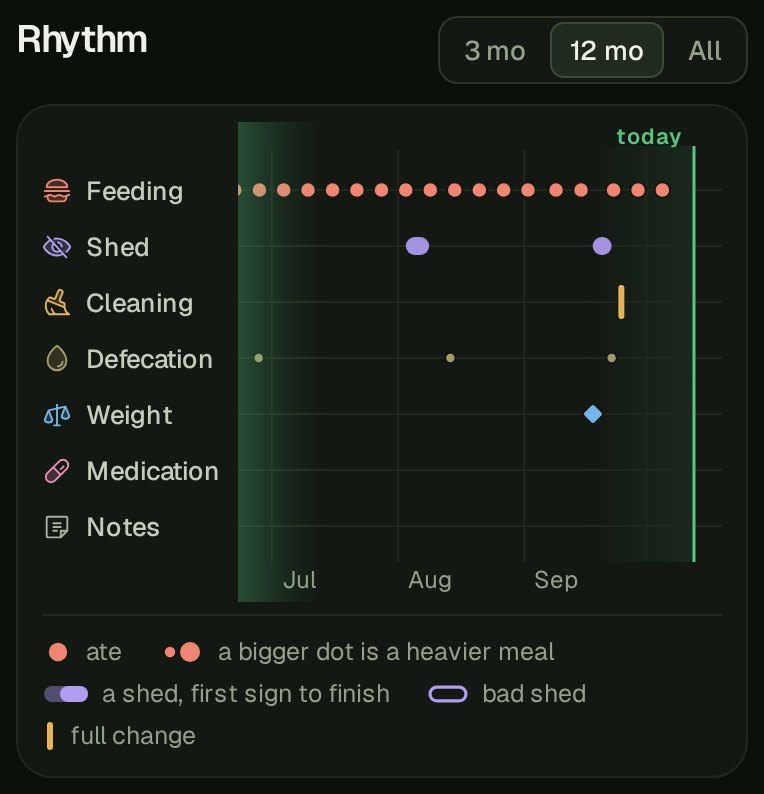
Rhythm lays an animal's whole history along a single timeline, one row per kind of care (custom categories included), with today on the right edge. Feedings are dots sized by the meal, hollow when refused, and a regurgitation is a small upward arrow on the day it came back up. Sheds are capsules, cleanings are ticks, weigh-ins are diamonds and doses are crosses.
It opens on the last 12 months, with 3 months and the full history a tap away and you can hover over every event to get additional detials. Each animal has a unique Rythym, and the idea is that this will allow you to easily visualize the history and identify patterns.
Milk's Rythym
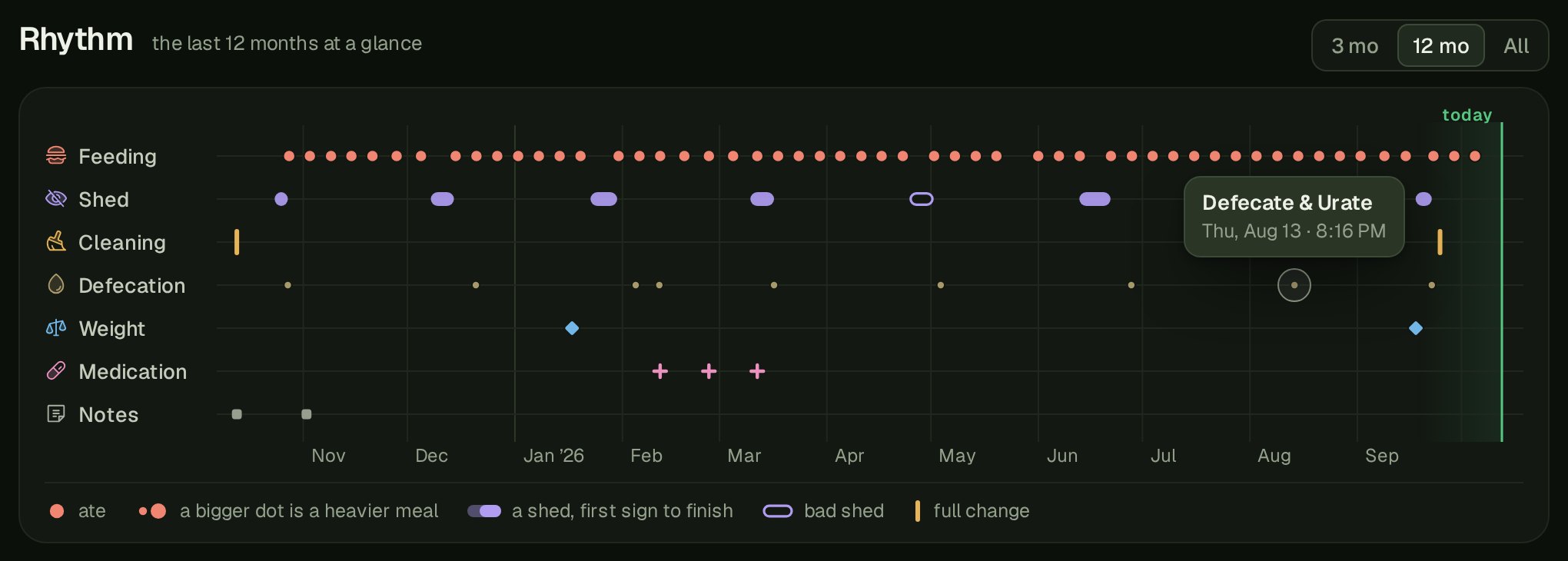
Here is the actual Rythym from my White Lipped Python - Milk. He sheds about six weeks apart very consistently, and usually has a defecation within a few days of every one of them.
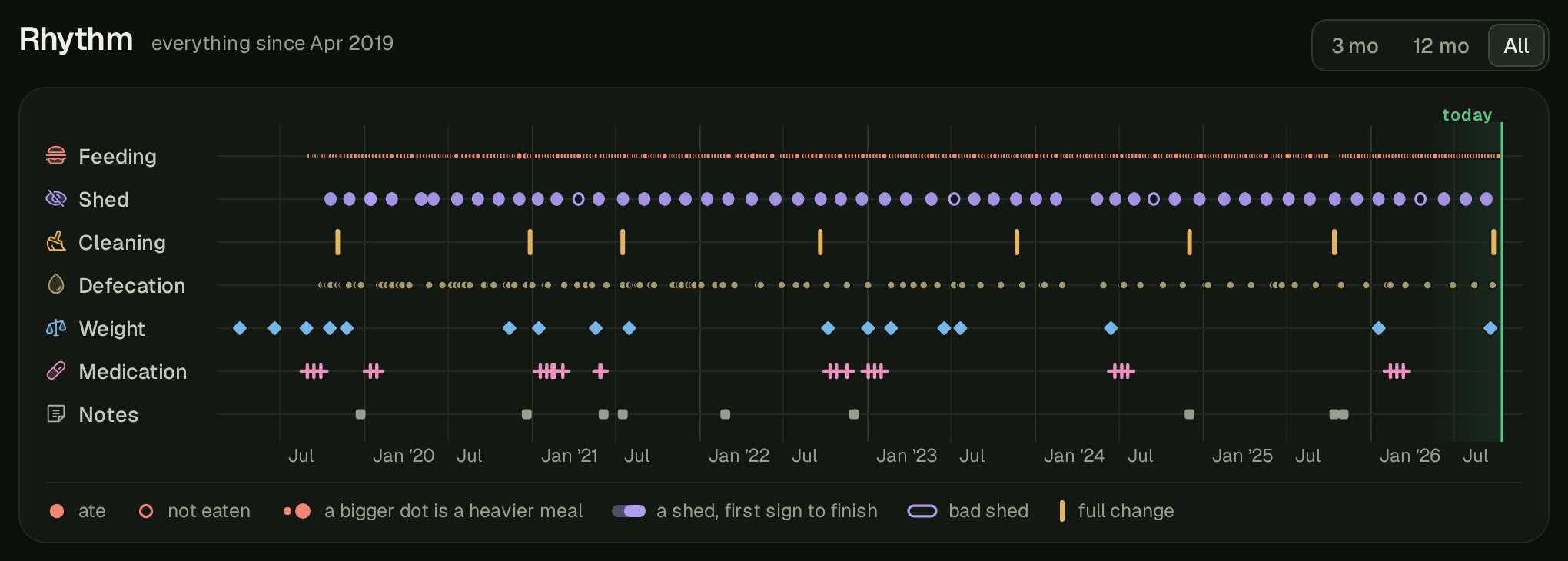
Switch the Rythym view to "All" and the same animal's whole record is on one screen: seven years of sheds at that same even spacing, the four bad ones hollow, a full substrate change about once a year, and weigh-ins climbing from 93 g to 491 g.
Jasper's Rythym
Jasper is one of my picky Green Tree Pythons. A dozen of his 35 meals this year were refused, in runs of three in November and again in July, and each run is a row of hollow dots rather than a column of "Refused". The three pink crosses in May are a round of Panacur, two weeks apart, with a tooltip open on the middle dose.
Truffles' Rythym
Truffles' record is a bit tough to discuss. He was a Ball Python that we and our vet suspsect had Cryptosporidium. As such, it caused frequent regurgitation which is shown on his Rythm as a dot when he was fet that then stands as an arrow on the day it came back up, with a stem to the meal it belonged to. In his case, the strip ends at his last entry rather than today, so an animal that has left the collection keeps its history readable.
Jenora's Rythym
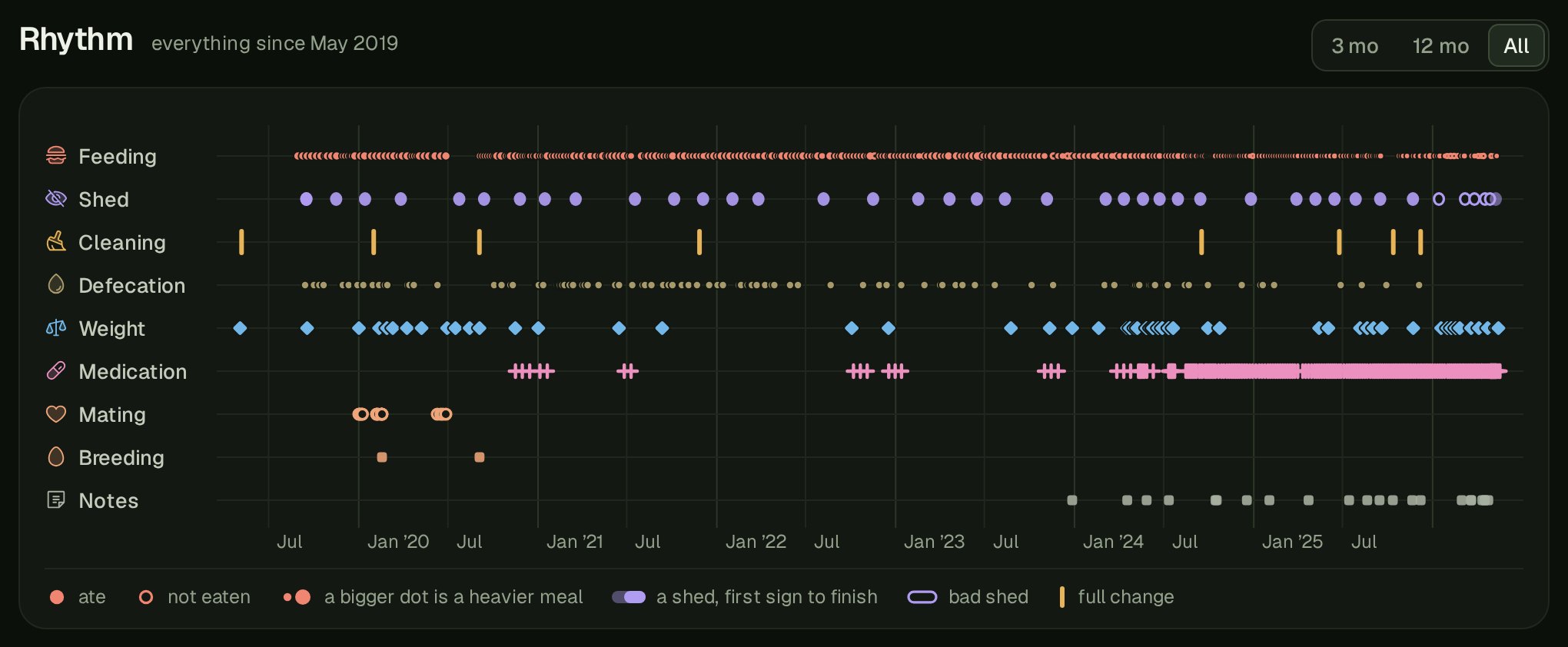
Jenora is another tough one to discuss. She was a Ball Python that ended up developing a thyroid issue early in 2024 which caused her to start losing weight and shed very frequently. We started ger on some medications which had to be given every couple of days as seen by the dense slew of + medication icons on her Rythym. At first, the medications were working and her Rythym shows that her shed cycle slowed down from July 2024 until April 2026 but her condition started to deteriate again.
This is one I just wanted to showcase as it's a real scenario where multiple patterns are visible without digging through records. She went of feed in June 2020 leading up to her laying a clutch of eggs. You can also see when her shedding pattern started to really tighten in January of 2024 as her throid issue started to manifest. The medications starting around that time before getting really dense was the typical Panacur, Metronidazol, Fortaz etc. before starting her on Methimazole in August 2024 which slowed her cycle and her weight also stabilized (we didn't log the events when her weight was the same).
Lastly on Rythym, on a phone the strip scrolls sideways so each month stays readable, starting from today.
Growth, History and the Rest
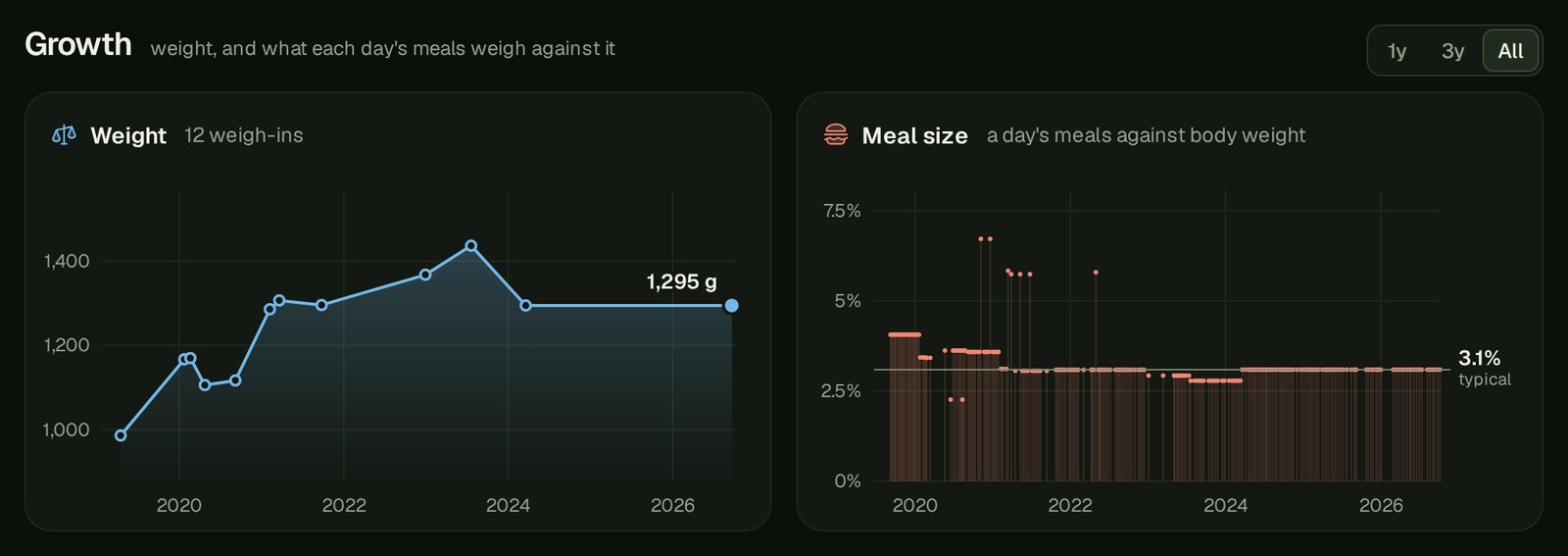
Growth charts weight over time and puts each meal's size against the animal's body weight. History is every event on one timeline with filter buttons, and a meal of several foods is one row that opens to show each. These existed in the legacy app, but were barely functional and didn't give much information. Now they give more detail and the Meal Size chart also calculated food-to-weight ratio calculating the snakes weight at the time of feeding (based on the closest weight event) and the total weight of the meal.
The Shed dial estimates the next shed from the animal's own last five cycles, so it follows the animal as it ages. I checked this against my collection's own 858 logged sheds and it's able to estimate within 9 days. I ran the same checks against the "Days Between Shed Cycles" that the Legacy SnekLog app used, and that missed by about 14 days on average. So while it's not perfect, its there to act as a gentle nudge to keep an eye out for missed feedings, a mood change, and lets you get a head start on bumping up the enclosure humidity.

A strip under the tabs steps to the previous or next animal in your collection (the arrow keys do it on a computer), so checking down a rack doesn't mean going back to Home each time.

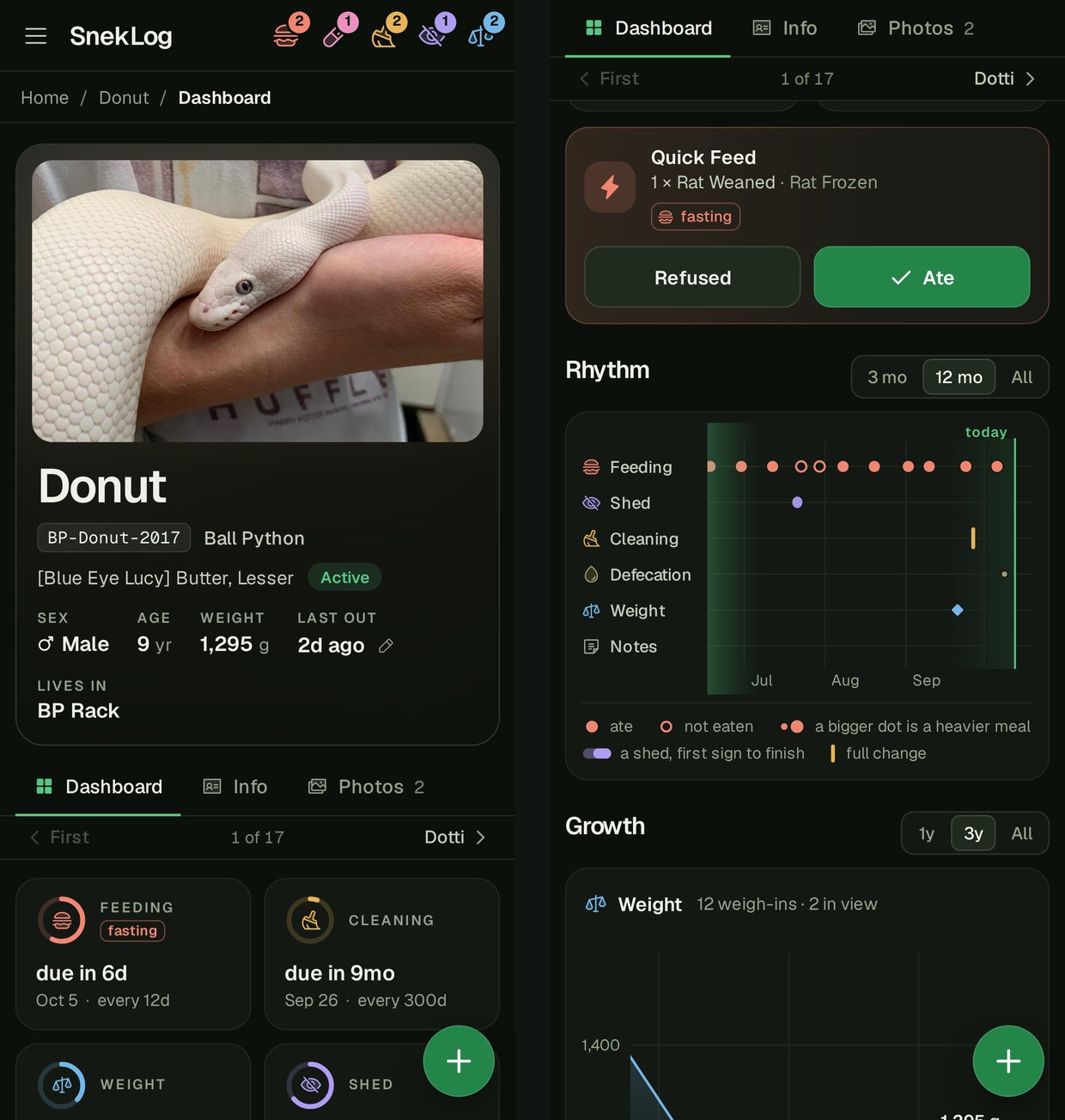
On a phone, everything stacks into one column that's easy to scroll with a thumb. This image is a side by side as if you were to scroll down on the dashboard.
Logging a Feeding
The floating + sits at the bottom right of the main screens and generally replaces the old sidebar. This is how you log events, add reptiles, and take most of the actions on each page.
An example use here is the Feeding form. It has an Ate / Refused / Regurgitated switch under the food. If Regurgitation is selected, it will ask for a 2nd date/time, which is when the meal came back up. The event forms now open up as drawers on mobile, the following picture is really long to show what the entire form looks like. In reality this is scrollable and fits on your phone.
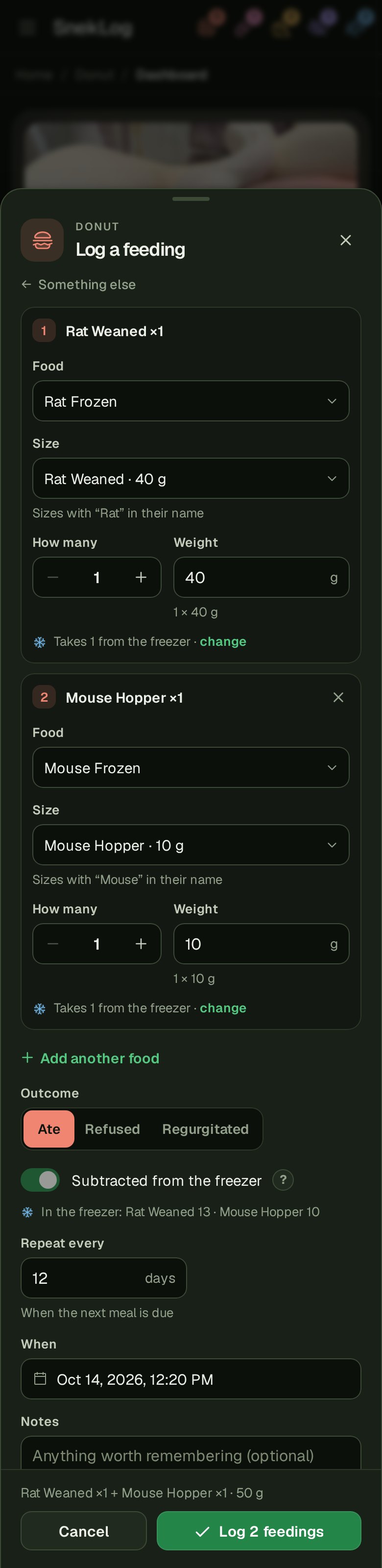
One feeding event can now hold up to five foods, each with its own size, count and weight. It's saved as one meal and shows as one row in History and the Calendar that opens to each food. If you count stock, the form also says which count the meal takes from (more about that under Food Stock below).
Quick Actions and the QR Code
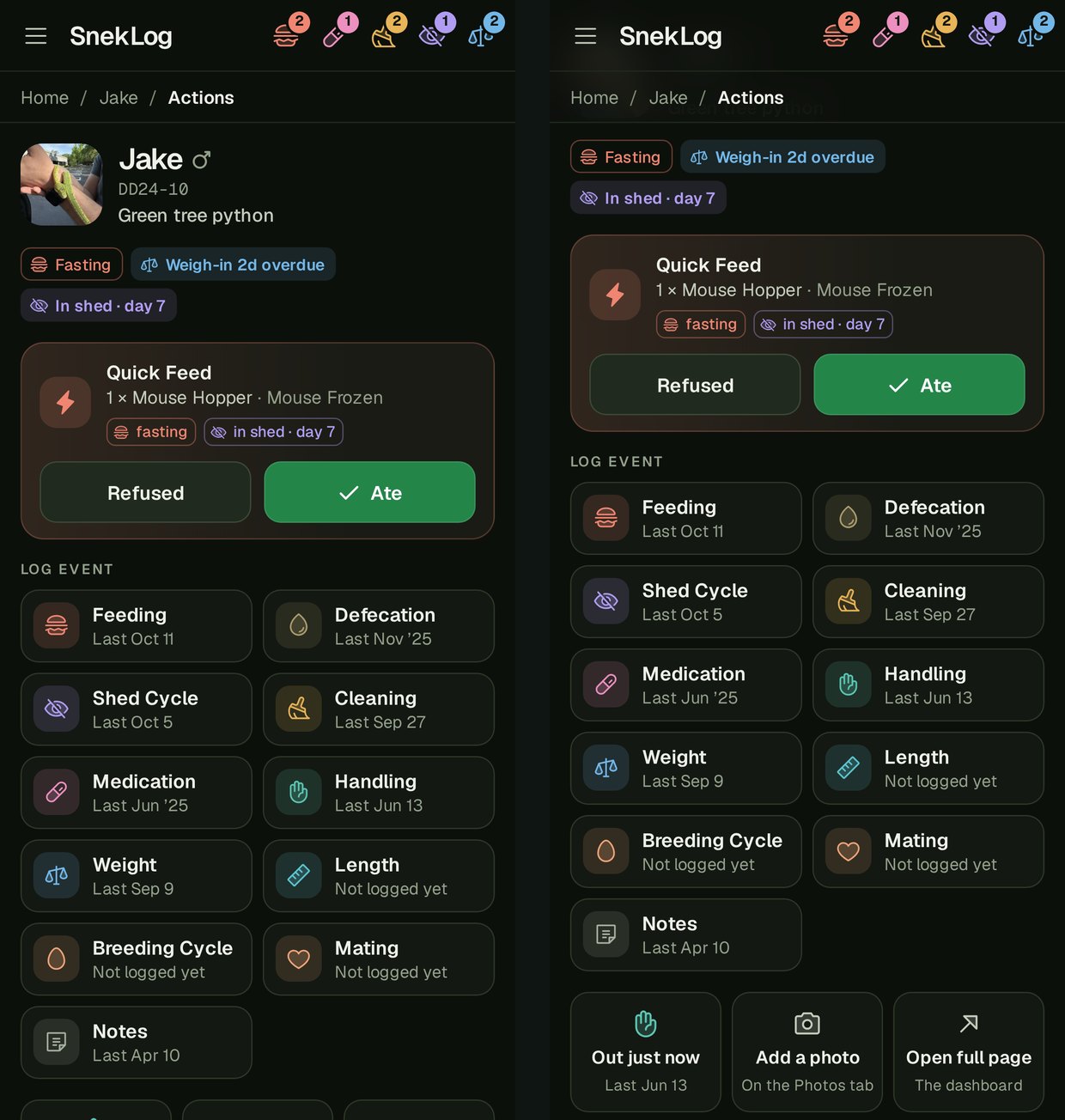
Cage cards SnekLog prints carry a QR code (the cards are covered under Reports below). Scan one with your phone's camera and it opens Quick Actions, a one-hand page for that animal.
At the top, what it needs right now is spelled out with little badges, like "Weigh-in 2d overdue" or "In shed · day 7", or "All caught up" when there's nothing to do. Below are Quick Feed, a tile for each kind of event with when it was last logged, "Out just now" to log handling in one tap, Add a photo, and Open full page. Quick Feed and "Out just now" both offer an Undo button just in case you make a mistake.
Photos
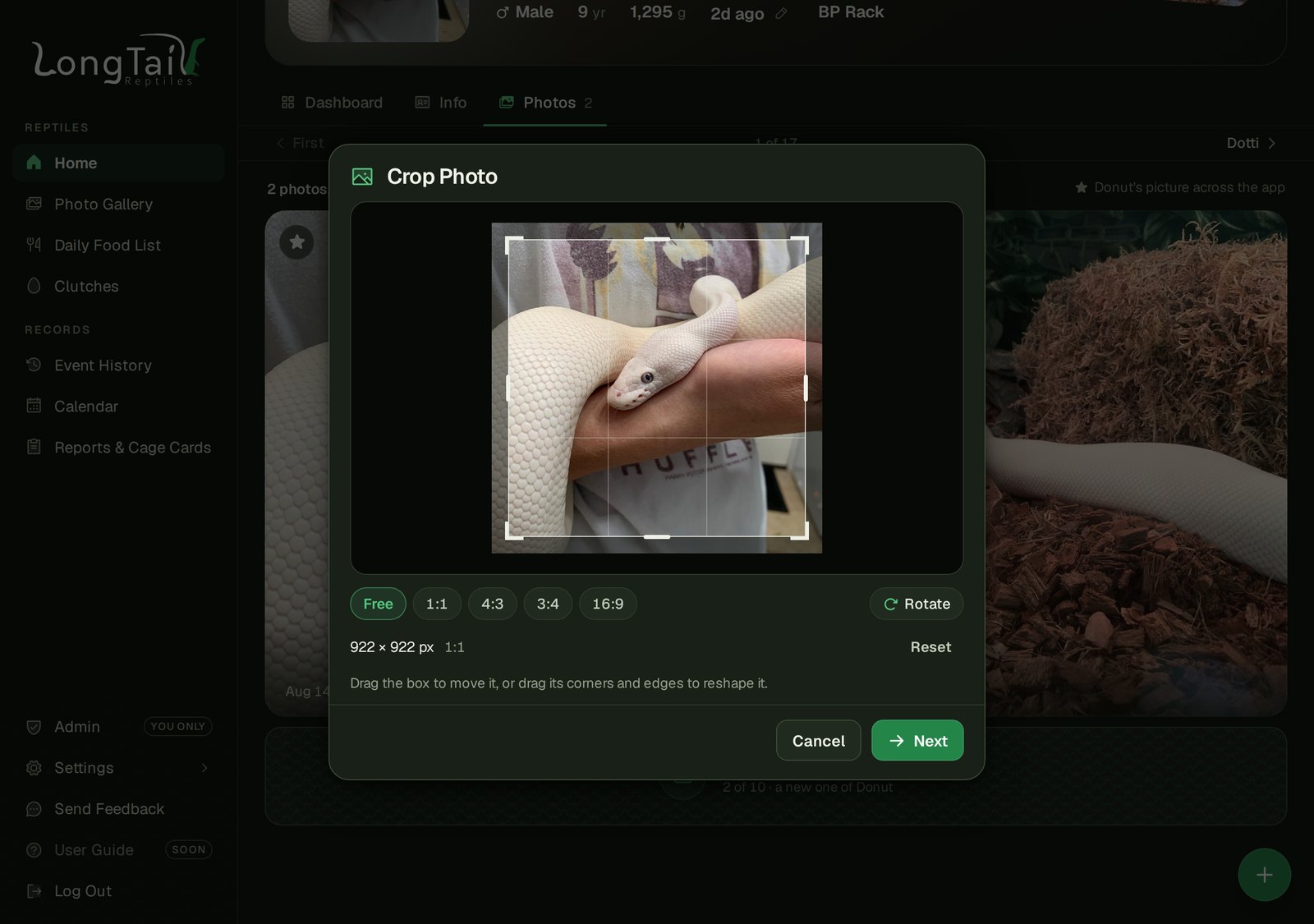
Each animal can hold up to 10 photos. Adding one opens a crop window right on your device, with pre-defined aspect ratios, a free crop, and the ability to rotate. The date taken fills in from the photo metadata if it exists and you can enter the caption at upload time. The new version of SnekLog also generates thumbnails for use across the app which makes it overall much quicker than before. This is a massive improvement to the extreamly clunky way the legacy app handled photos.
Any photo can be deleted, the primary included, and the next newest takes its place.
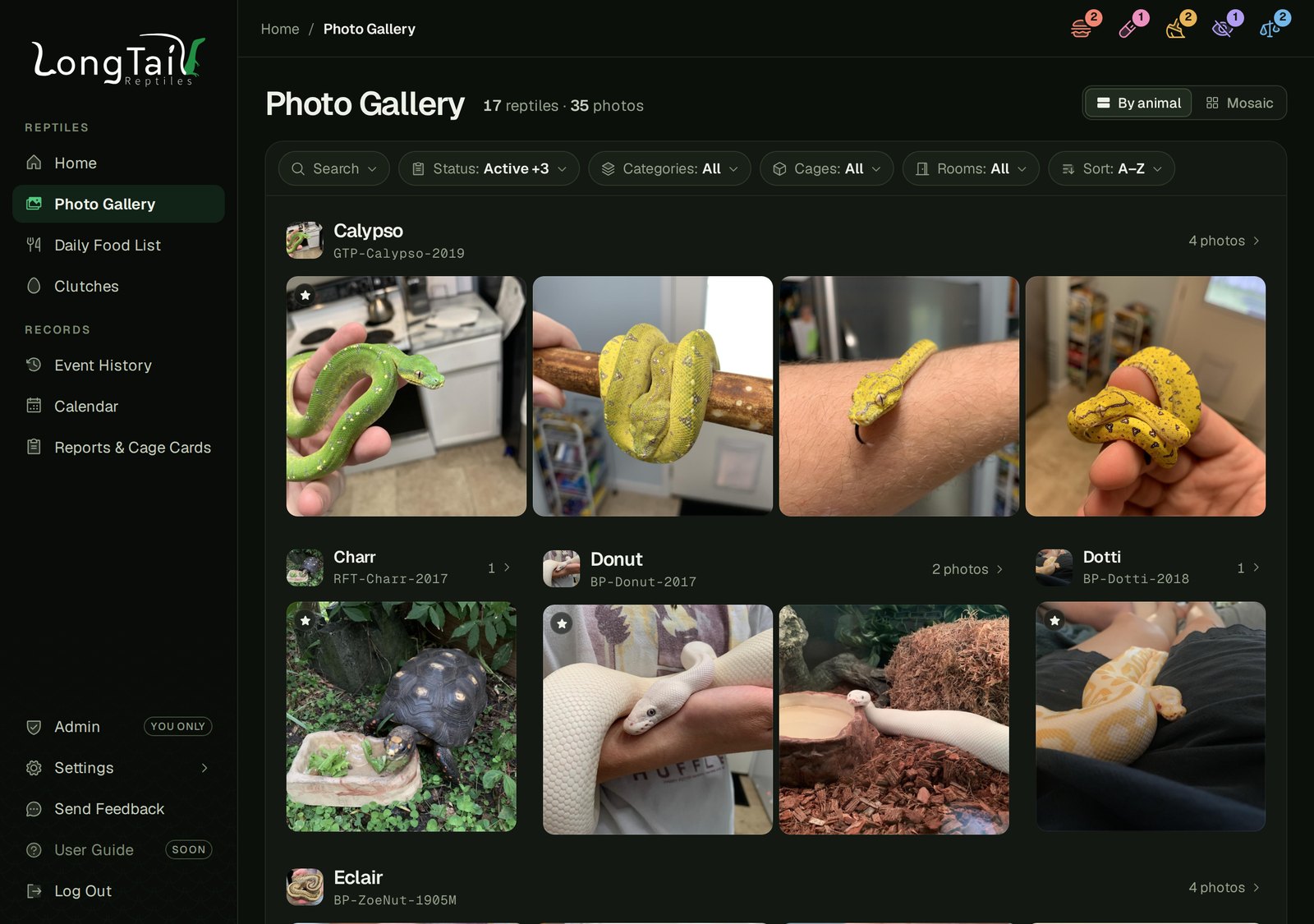
The Photo Gallery shows photos across your whole collection, with filters, search and sorting, a dozen animals at a time with a button to load more. Rows, tiles and the Gallery use small copies of each photo, and the full size one loads only when you open it, so a big collection stays quick.
Adding and Editing Animals
The old Add/Edit reptile form was exreamly long with almost 50 different information fields clumped together. The new one is six sections that slide in from the side: Basics, Housing, Feeding, Shedding & Reminders, About the Animal, and Origin & Lineage.
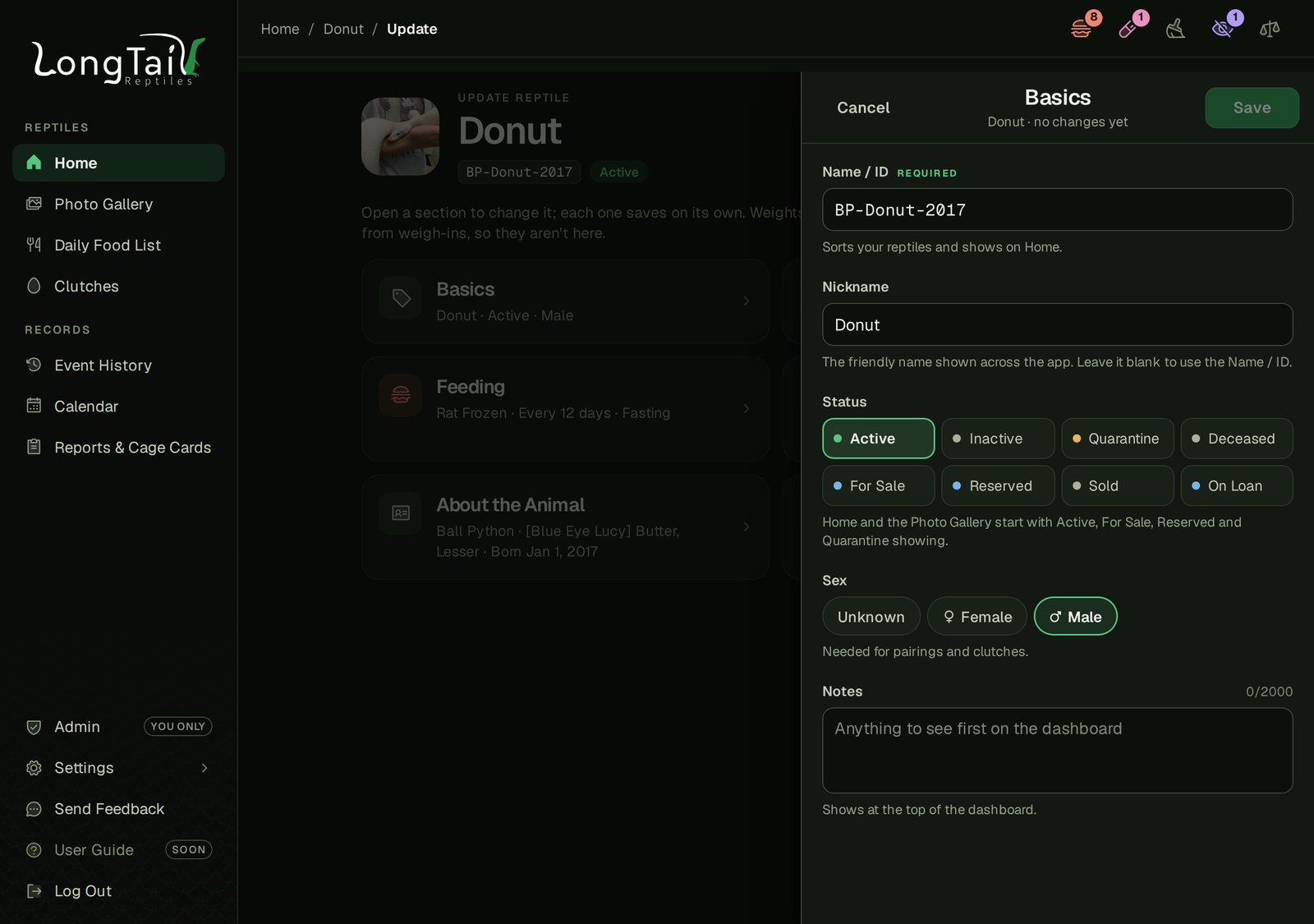
Editing saves each section as you make changes and close each section. Adding will not save/create until you press "Add Reptile", so no half-made animal gets added to your collection. The starting weight and length become the first weight events, so the Growth chart has something on day one.
- Clone and Delete are both there. Delete asks first, and offspring keep the parent's name.
- Nickname is optional. Leave it blank and the name is used.
- Units are per animal: g, kg, oz or lb, and in, cm or ft.
- Category defaults. Give a category a temperature, humidity, feeding and cleaning interval (Settings › Reptile Categories) and new animals in it start with them filled in. They only prefill when adding, never on an edit.
Bringing in a Spreadsheet
If you have a large collection and want to do a bulk import/create of animals, that is now an option.
Download the template (an Excel version with dropdowns of your own food types and sizes and a how-to sheet, or a plain .csv), fill it in, then upload it or paste the rows straight from Excel or Google Sheets. Columns are matched by name, so you're only asked to map one when nothing recognizes its header.
The Check step reads every row before anything is added. Odd data gets a notice for you to correct, and a row is held back only for a missing or duplicate Name/ID, a clashing nickname, or text too long for its field. A typo'd food name gets a picker already set to the closest match.
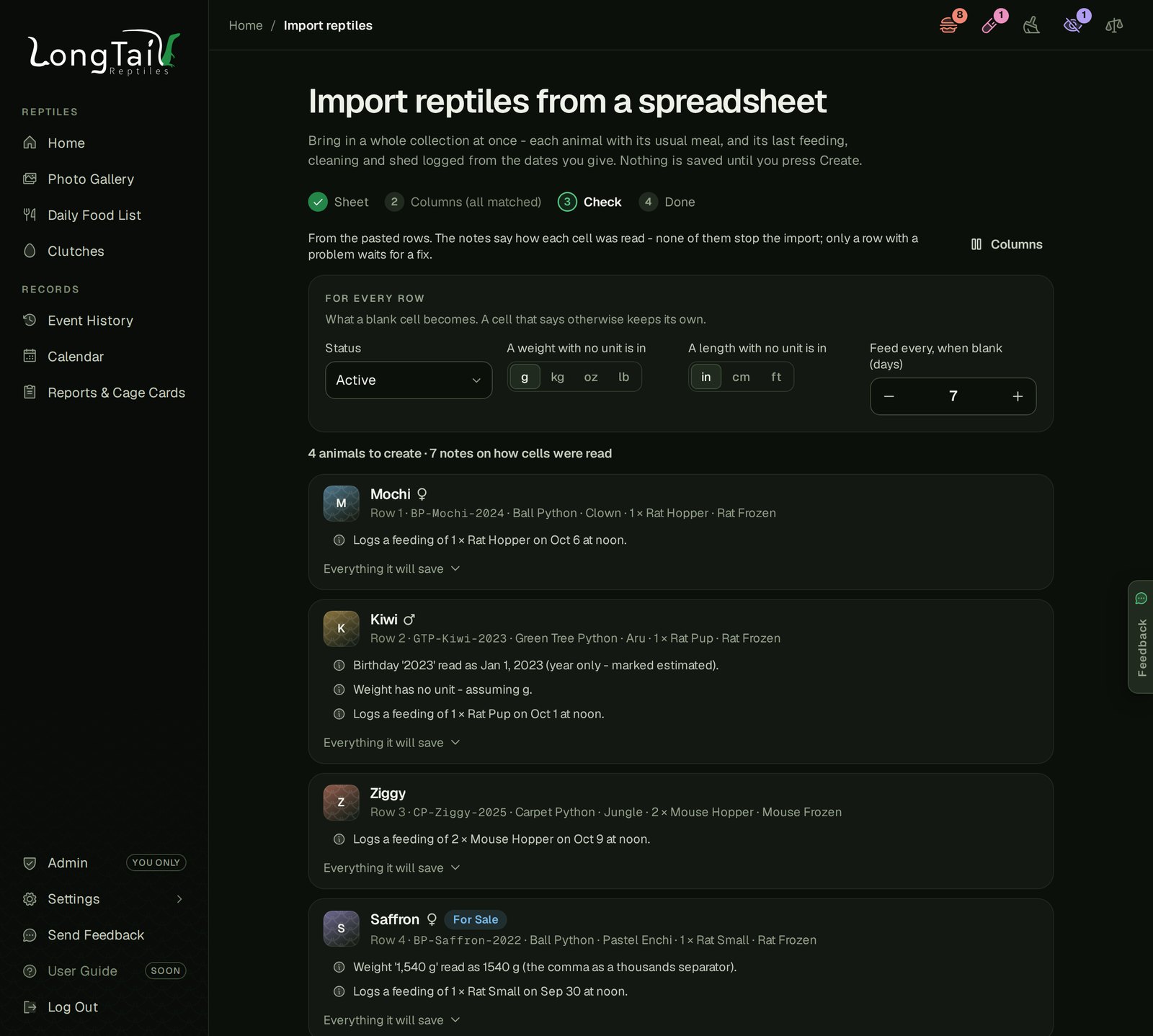
"Last fed" (with the food), "Last cleaned" and "Last shed" log a real feeding, substrate change and shed on those days, so the reminders start out right. One import takes up to 100 animals, and the result screen has an Undo.
Daily Food List
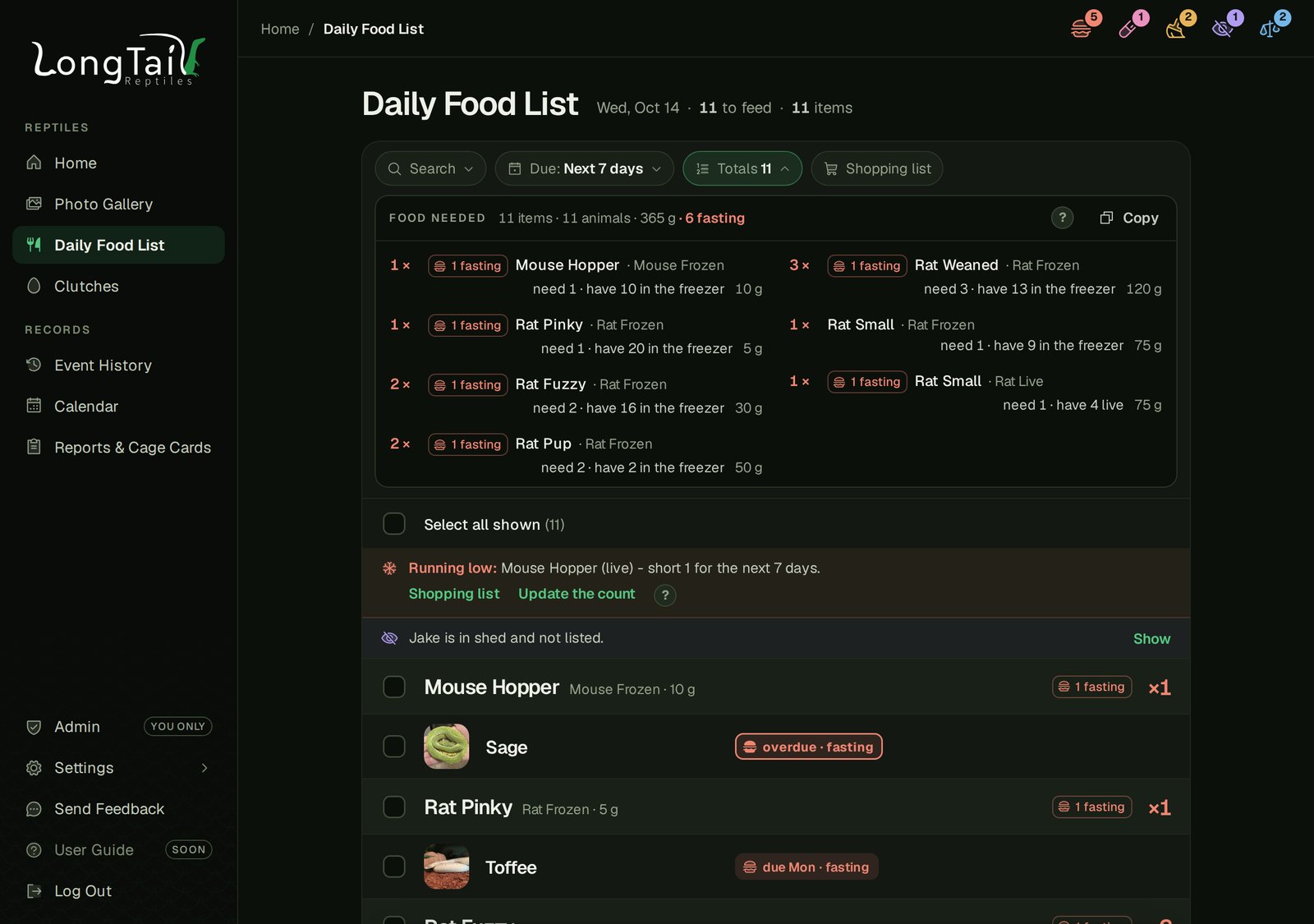
The Daily Food List groups everyone due by food type and size, with a total for each. "Totals" shows the whole list at once for pulling feeders, with a Copy button for a shopping list. It can show what's due now, what's due by tomorrow, or the whole next 7 days for anyone who thaws feeders out in advance.
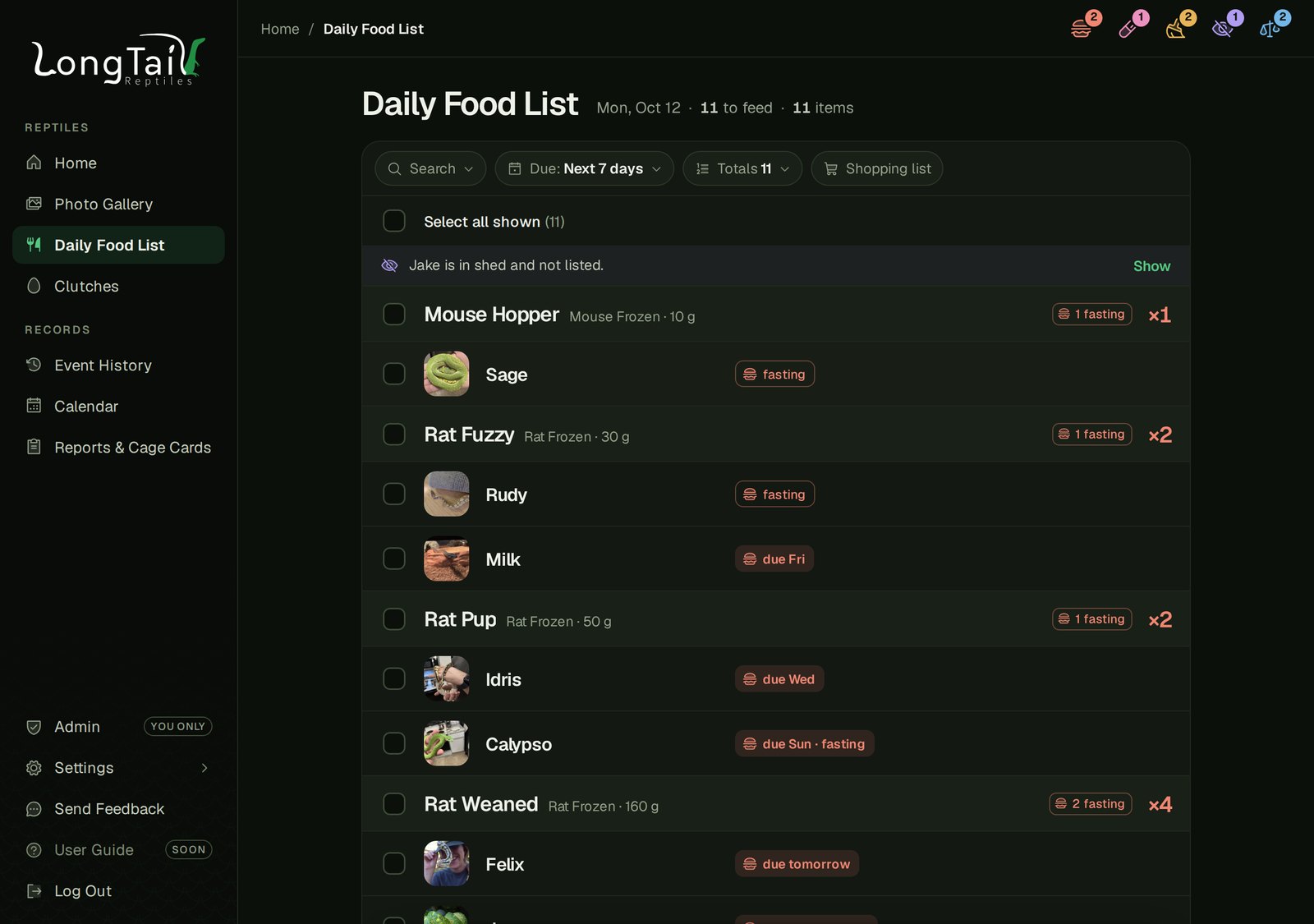
You also have the ability to log feeding events from this page as well. You simply just select the animal and then click "Feed N" at the bottom of the screen.
Food Stock
SnekLog is now also capable of tracking Food Stock for both Frozen Food, Live Food, or a mix of both. When creating or editing a Food Type, you now have an option to select whether or not it would pull from your Frozen or Live Stock. Then from your food size (assuming its linked to a tracked food type), you can choose whether or not you want to track stock of it.
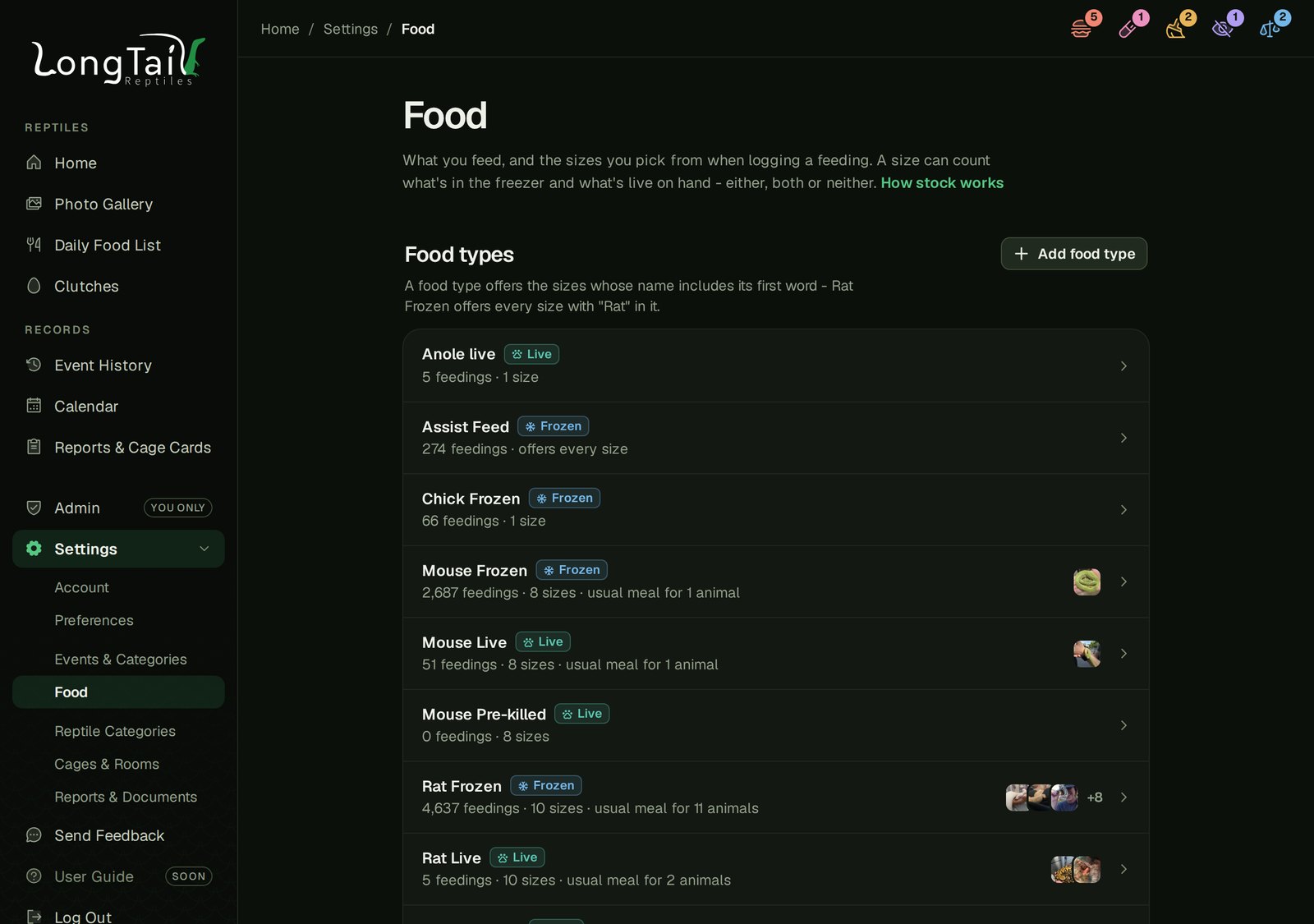
Turn on "Count stock" for a size and type in what you have. If you have a mix of Frozen or Live for a particular side, they can be added and tracked independantly.
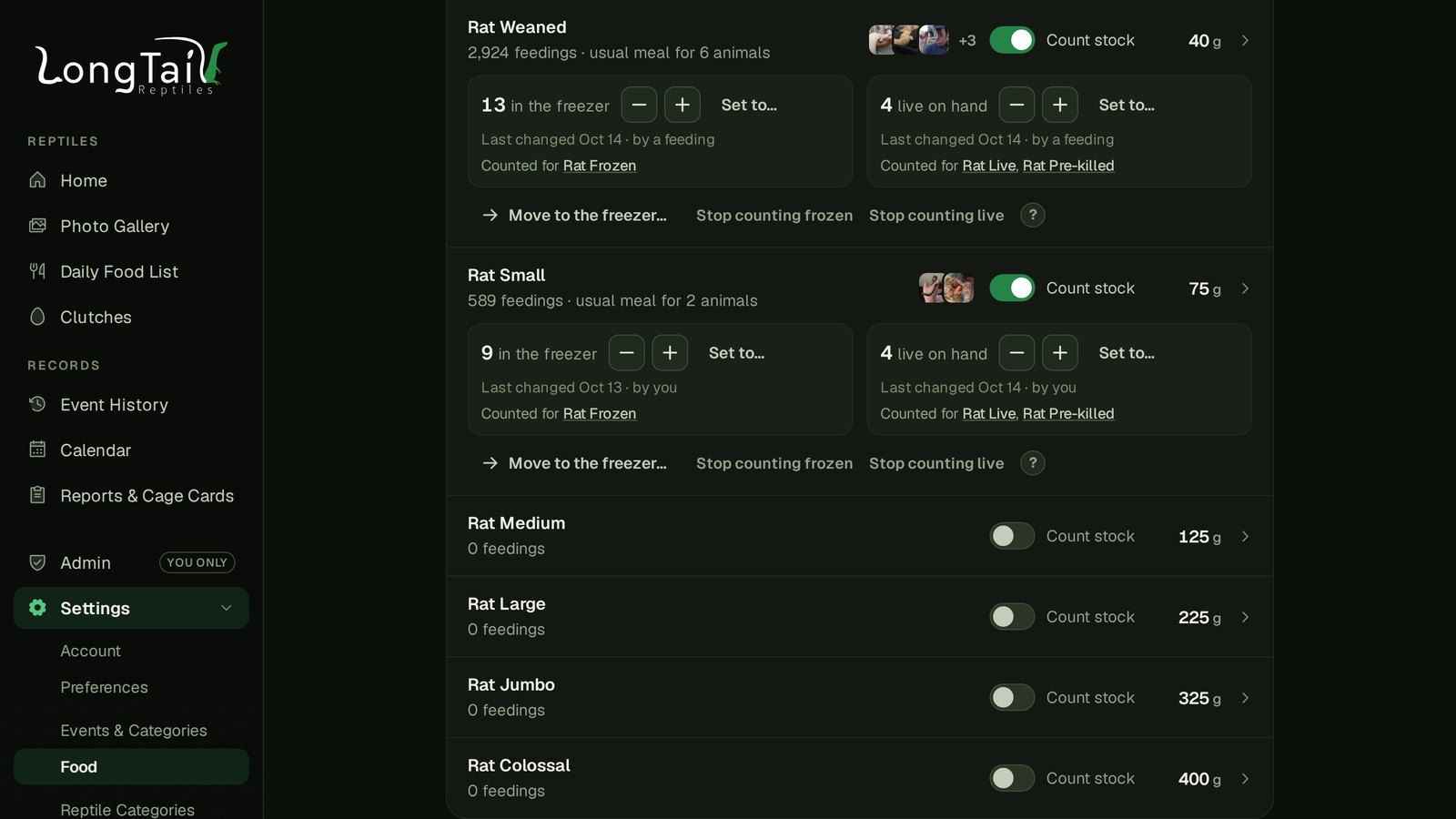
Each feeding takes from the count its food uses, and the event form will let you know with text like "Takes 1 from the freezer". If for some reason the meal did not come from your stock, you have the option to turn off subtrating it for the feeding. By default, a refuse feed for a frozen item still counts as "used" as under most circumstances, you don't refreeze a thawed food item, but you can also override this. On the flip side, a refused live feeder is not ticked as consumed unless you specify. Finally, a regurgitated meal will always count as used from the food stock.
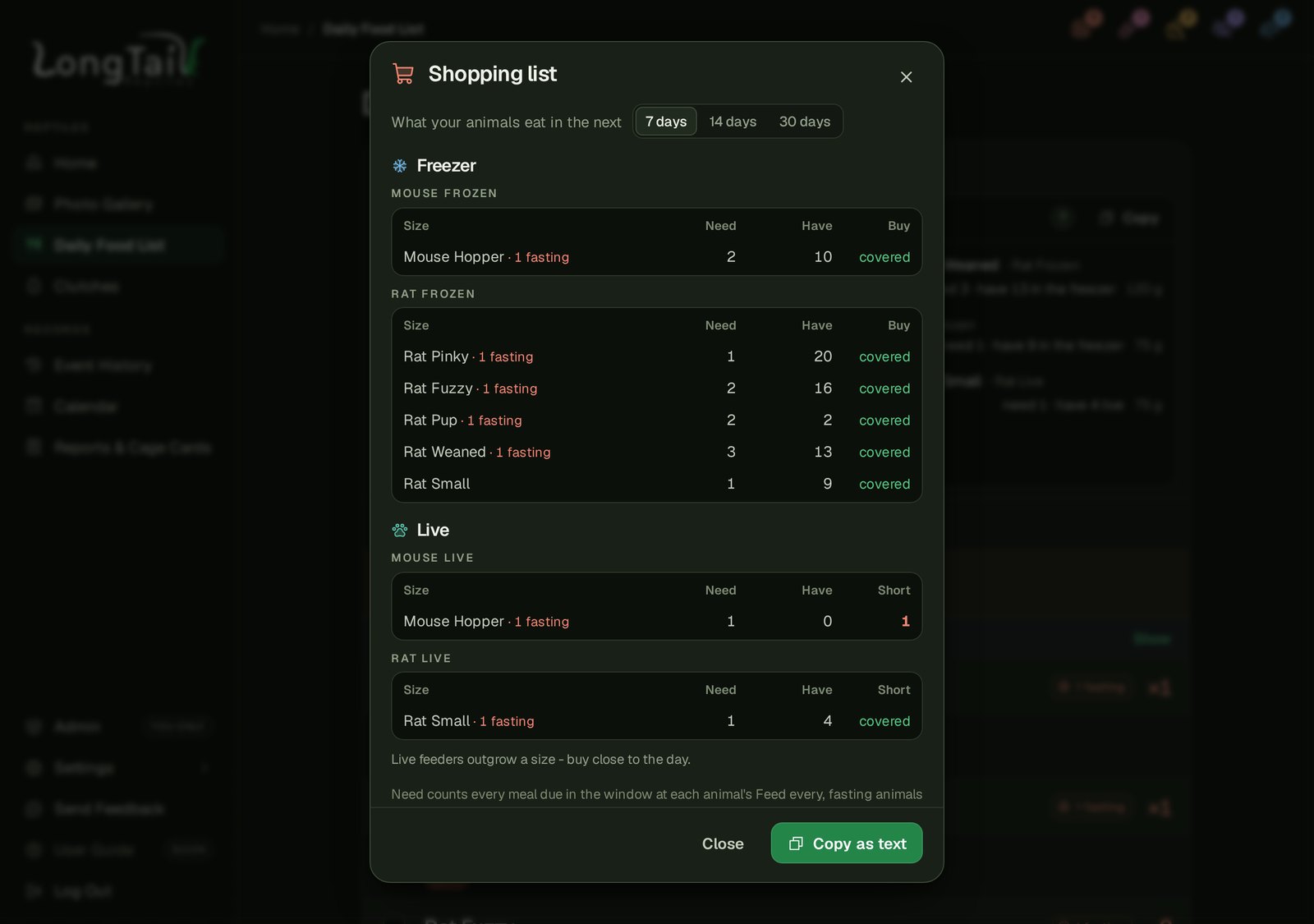
The Food List's totals read "need 3 · have 13 in the freezer" or "have 4 live", a running-low note appears when the week ahead needs more than a count holds, and the Shopping list splits into Freezer and Live.
Editing, deleting or undoing a feeding puts the item back where it came from, and a lack of stock will never stop you from logging an event.
The Calendar
The Calendar was something that was rather dissapointing in the legacy app. However, now it has become extreamly powerful. You can view historicals, log events, view projected future events, and even plan for time away from your collection.
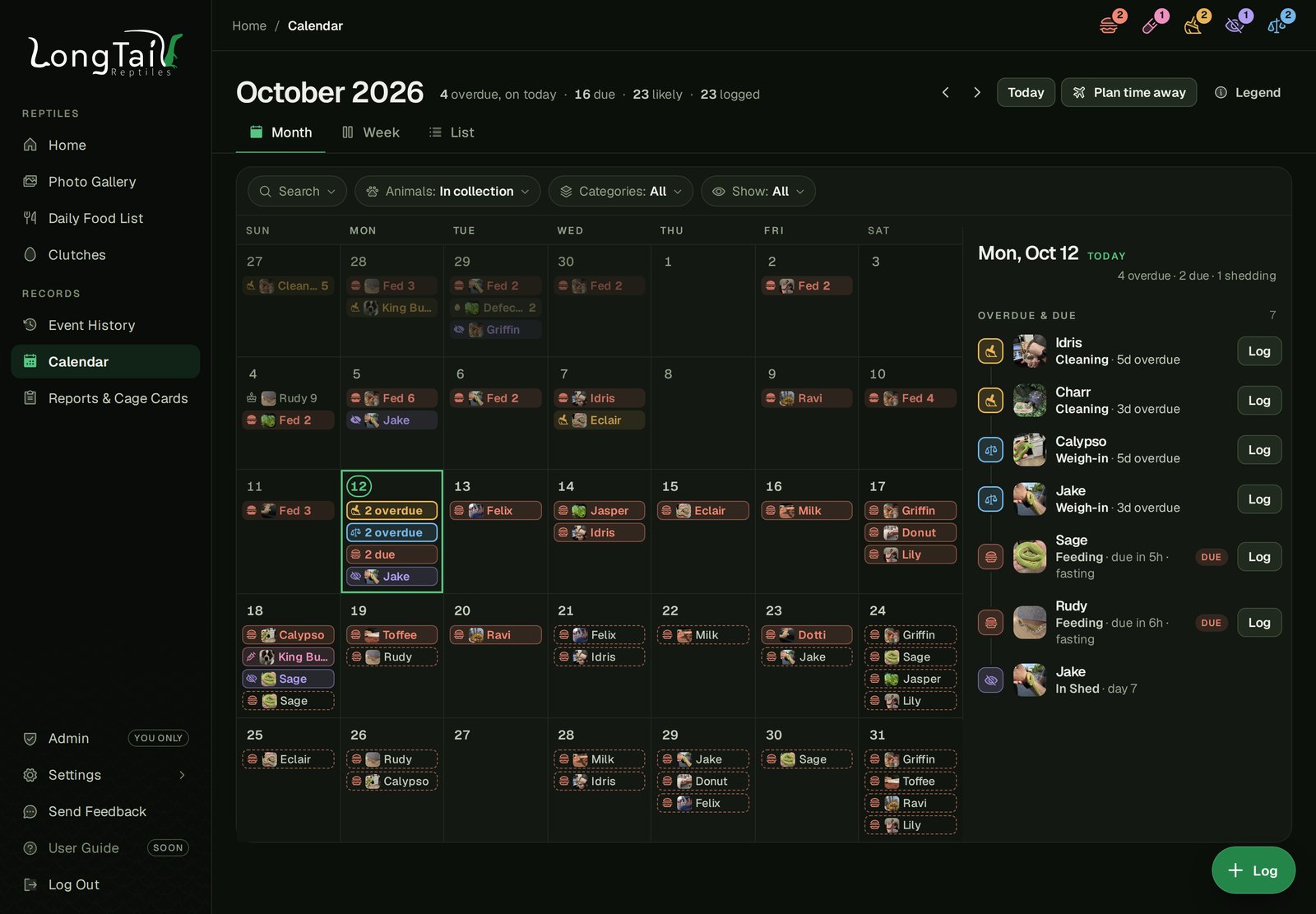
- Logged events are filled in with each care's color.
- Due reminders are outlined, and anything overdue sits on today.
- Likely events are dashed: SnekLog's guess at each animal's next feedings, so a big feeding day doesn't sneak up on you.
- Clutch due dates and birthdays show up too.
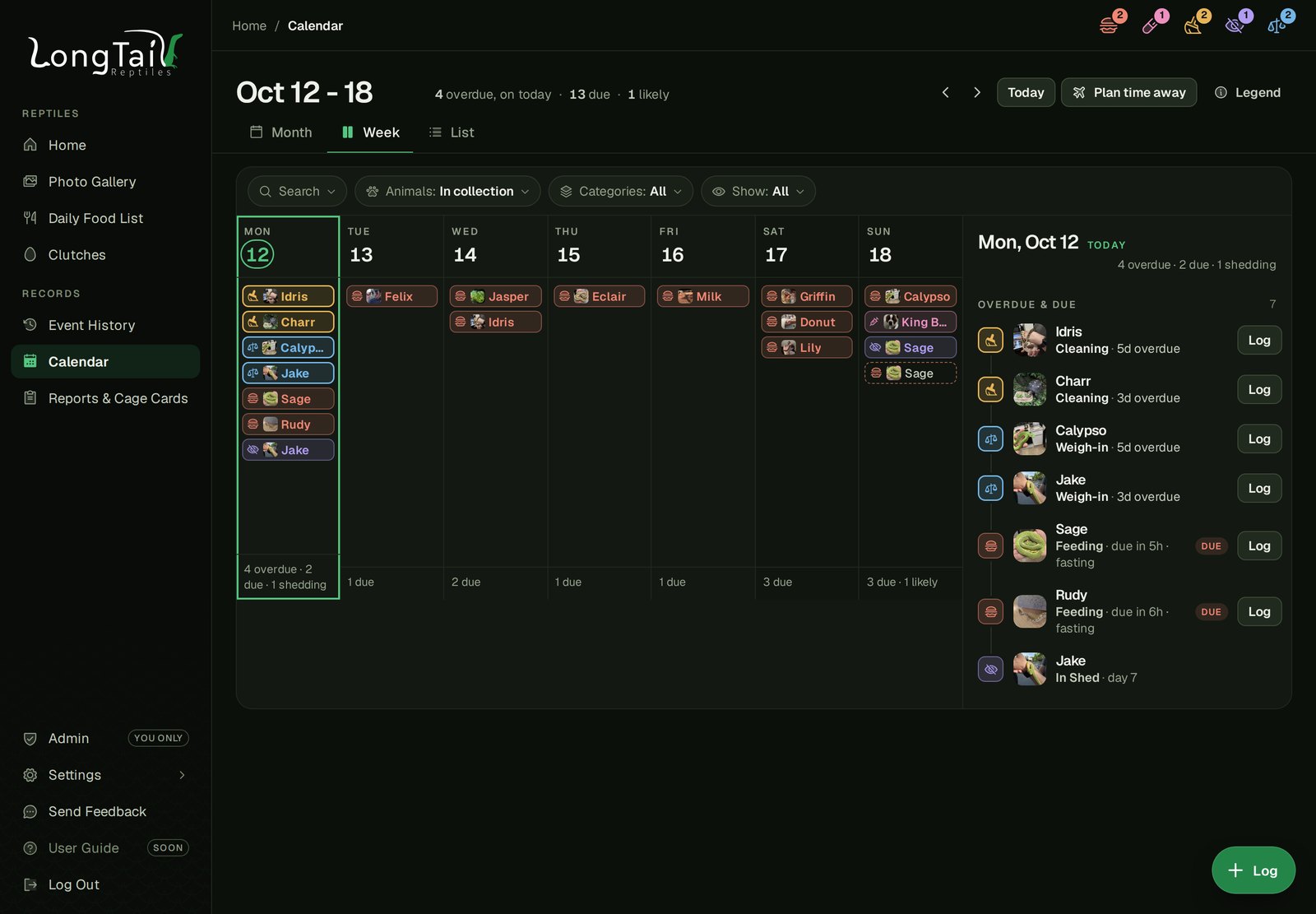
Busy days bunch up, so six feedings read "Fed 6" and a pile of late weigh-ins "13 overdue". You can also click on any particular day to view everything out as a list.
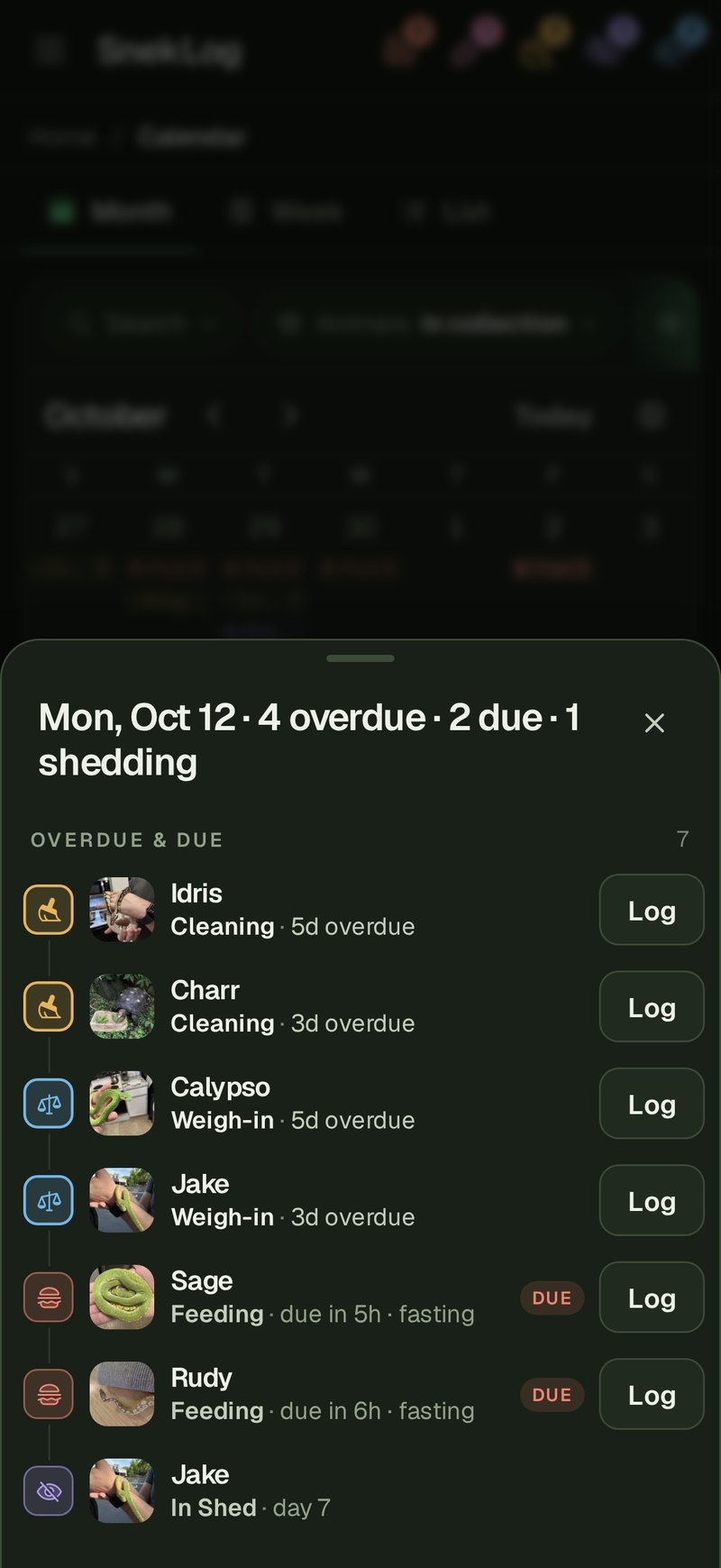
On a mobile device, the month fills the screen but still remains legible.
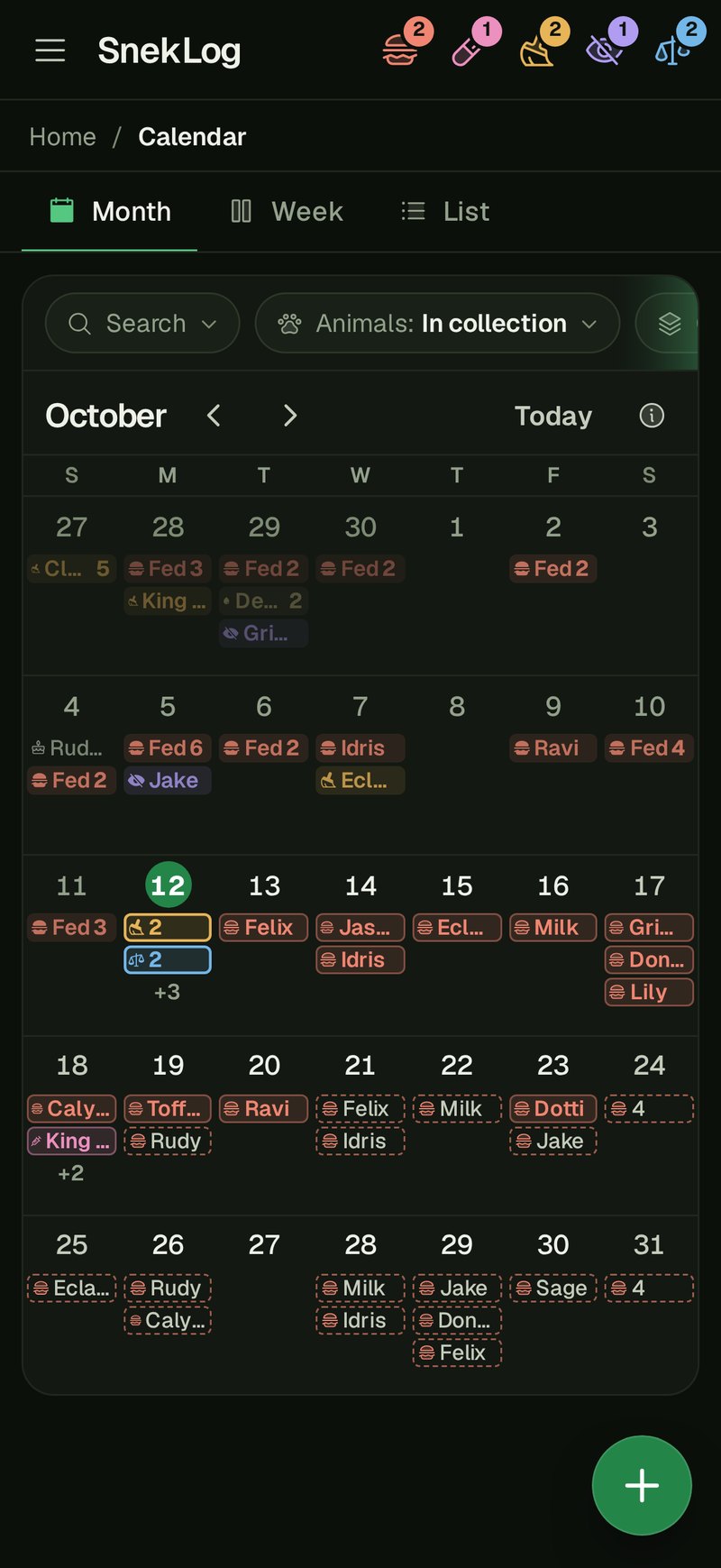
Tapping a day slides up a sheet with everything on it, ready to log from.
The Week view starts on the day you're looking at, and the List view is one long scroll that keeps loading.
Logging From the Calendar
The + Log button allows you to log events right from the calendar. It will default to logging the event for the day that is selected, and on days with due events, it will suggest those animals for the event specified. It allows for past days, so if you had a massive cleaning spree last weekend but forgot to log it, you can easily catch up by selecting the day and logging a cleaning event.
You do get an uUndo option after logging events here just in-case you made a mistake. You can see an example of this in action in the following video.
Plan Time Away
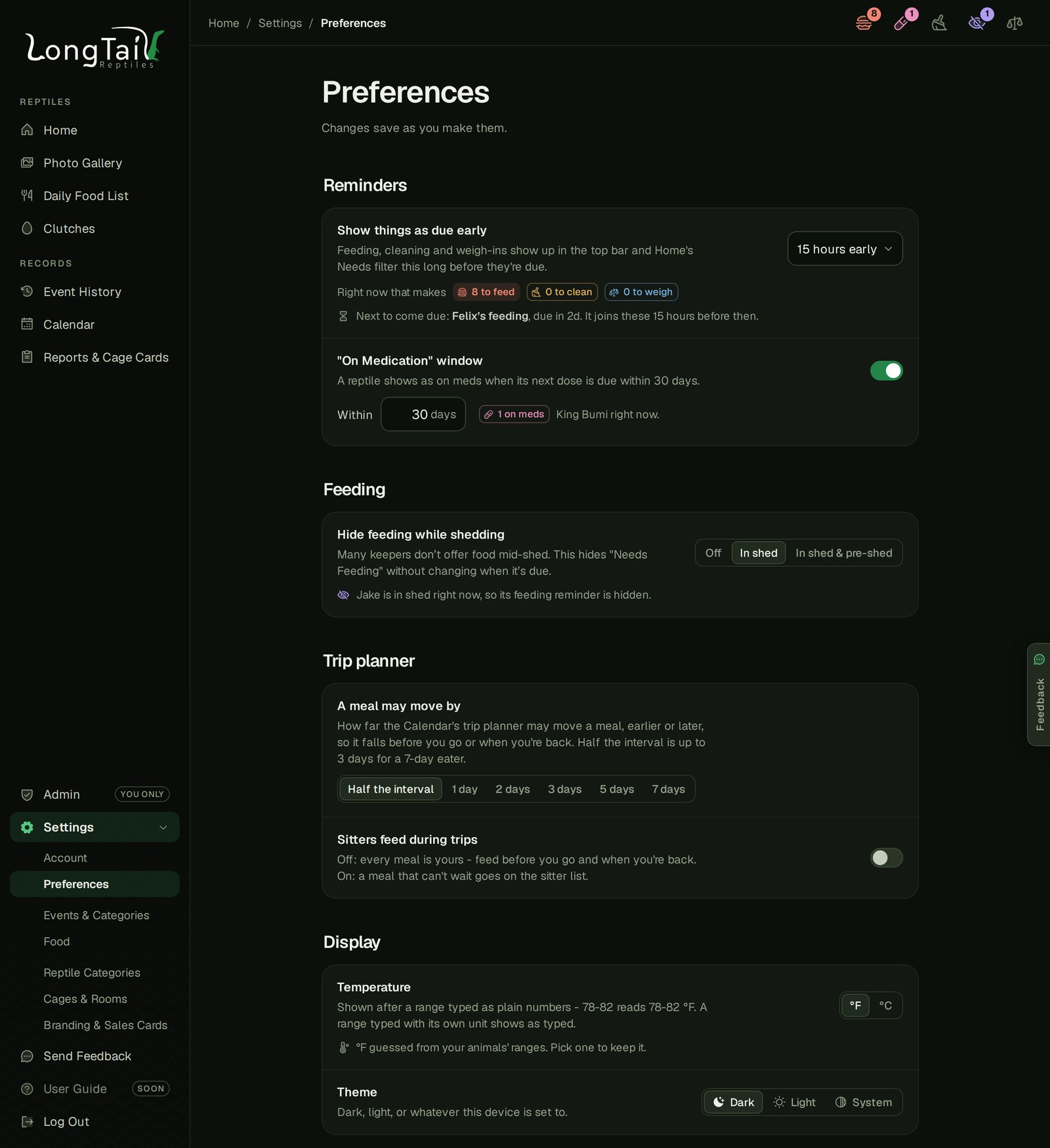
"Plan time away" takes the days you'll be gone and works out what comes due. For each animal it suggests feeding early before you leave or feeding when you're back. How far a meal may move is up to you, in Settings › Preferences or per trip. "Sitters feed during trips" is off by default, so every meal stays yours.
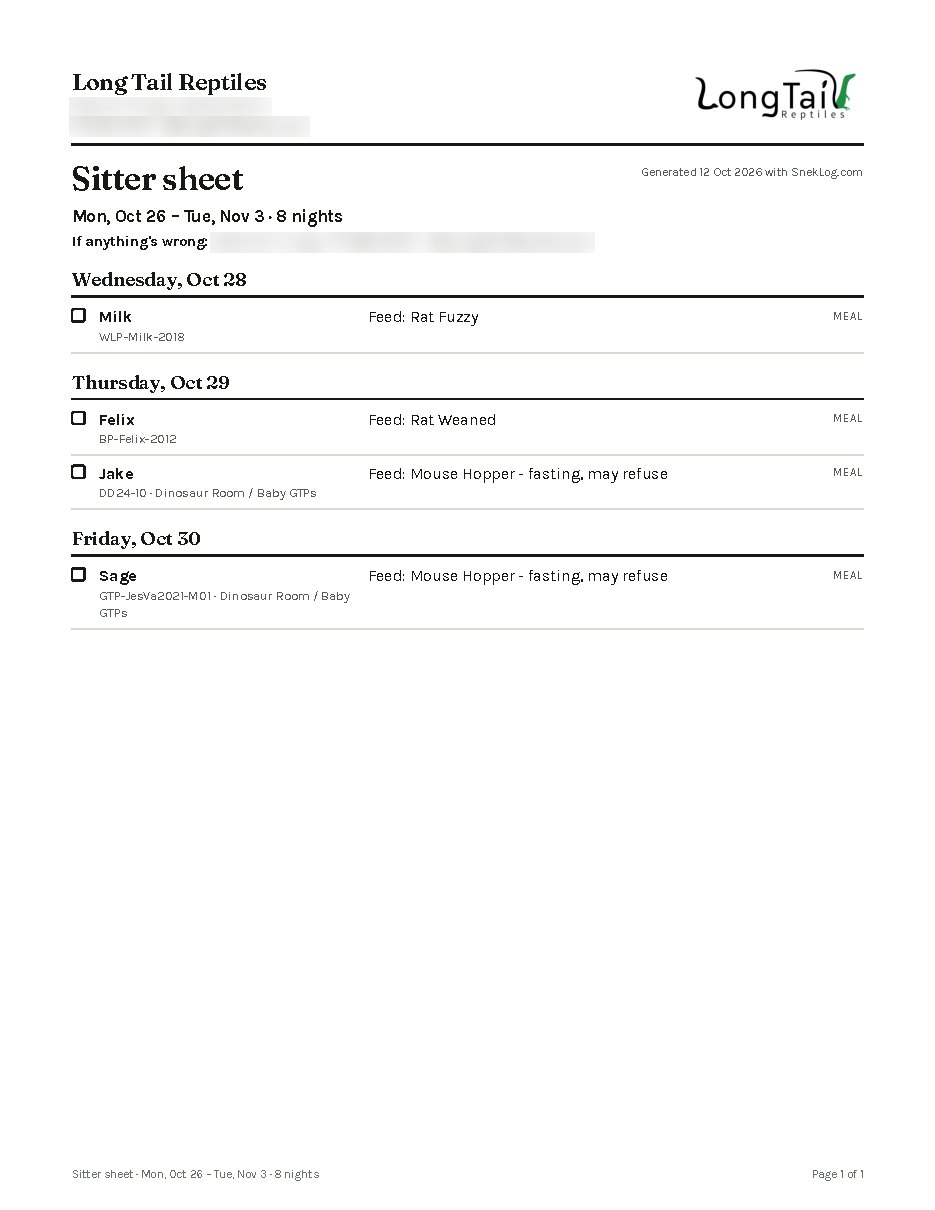
The new "Plan Time Away" feature allows you to select the date range you will be gone and works a lot of things out for you. You can choose whether or not you will feed your animals early or late and it will put feeding events on your calendar adjusted accordingly. It will also tell you what things will come up while your away (Expected Sheds, Due events, Medications etc.). You also have the option to print out a checklist for a sitter or someone who will keep an eye on your critters while you are away.
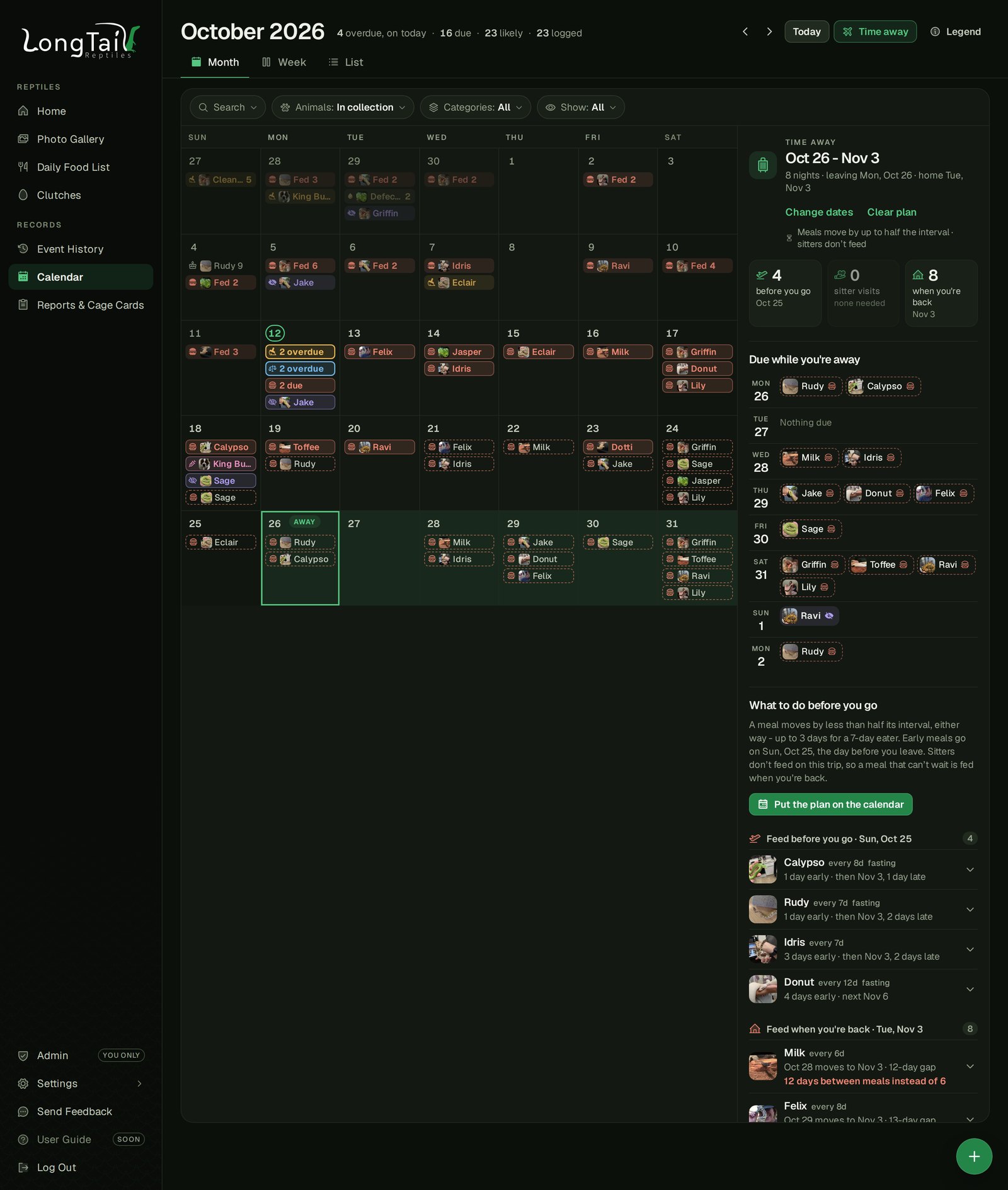
Whatever a sitter does need to do lands can be easily copied to send as a text, or even printed out on a peice of paper. The printed report includes a notes box and a checkbox for every task.
Clutches
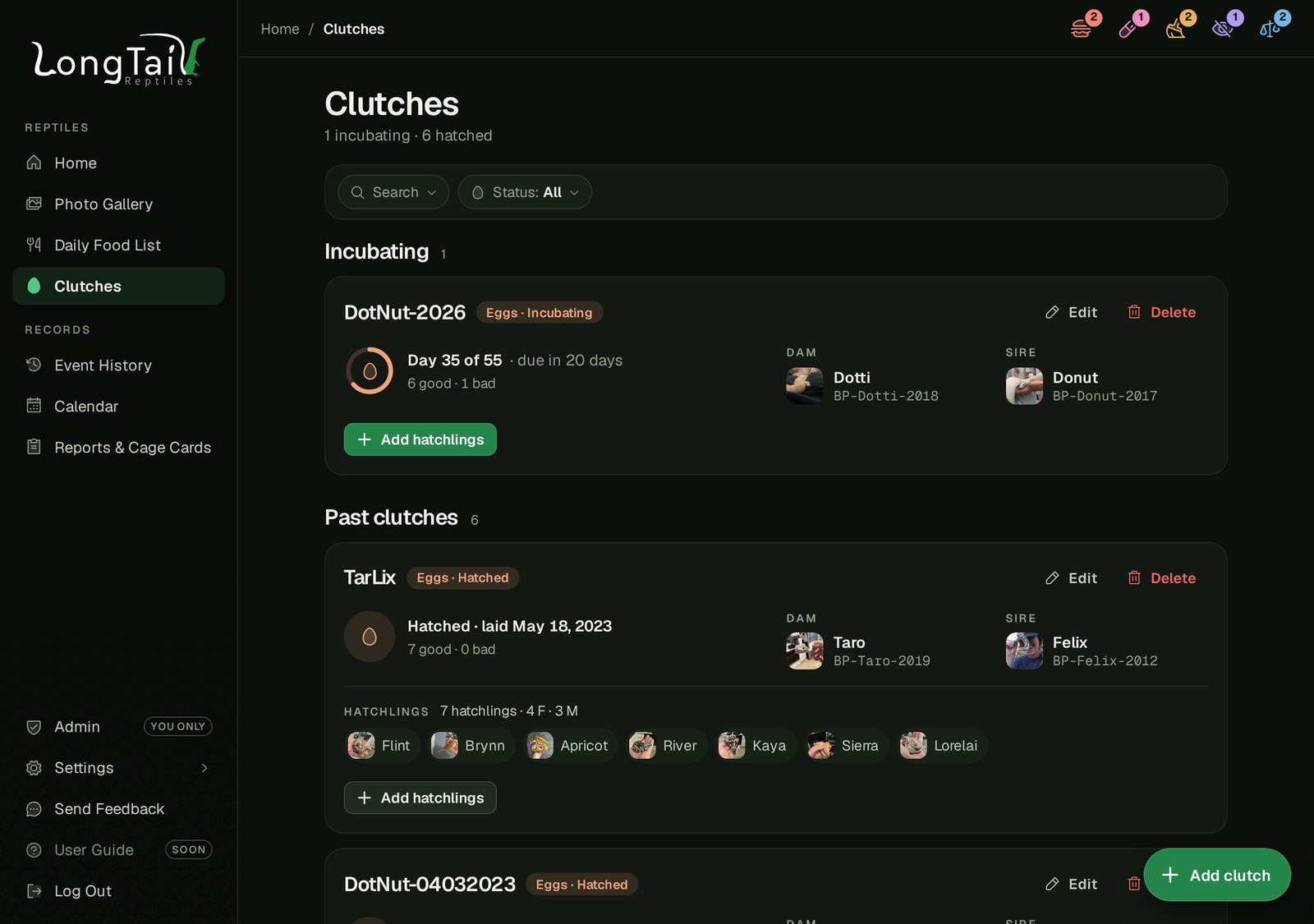
Overall, Clutches remains unchanged from the legacy app, it's just recieved the same facelift as everything else. Each Clutch is represented as a card with an incubation ring ("Day 35 of 55 · due in 20 days"), both parents and how many eggs were good and bad. Any hatchlings already in your collection also show under that particular clutch, matched by their clutch ID.
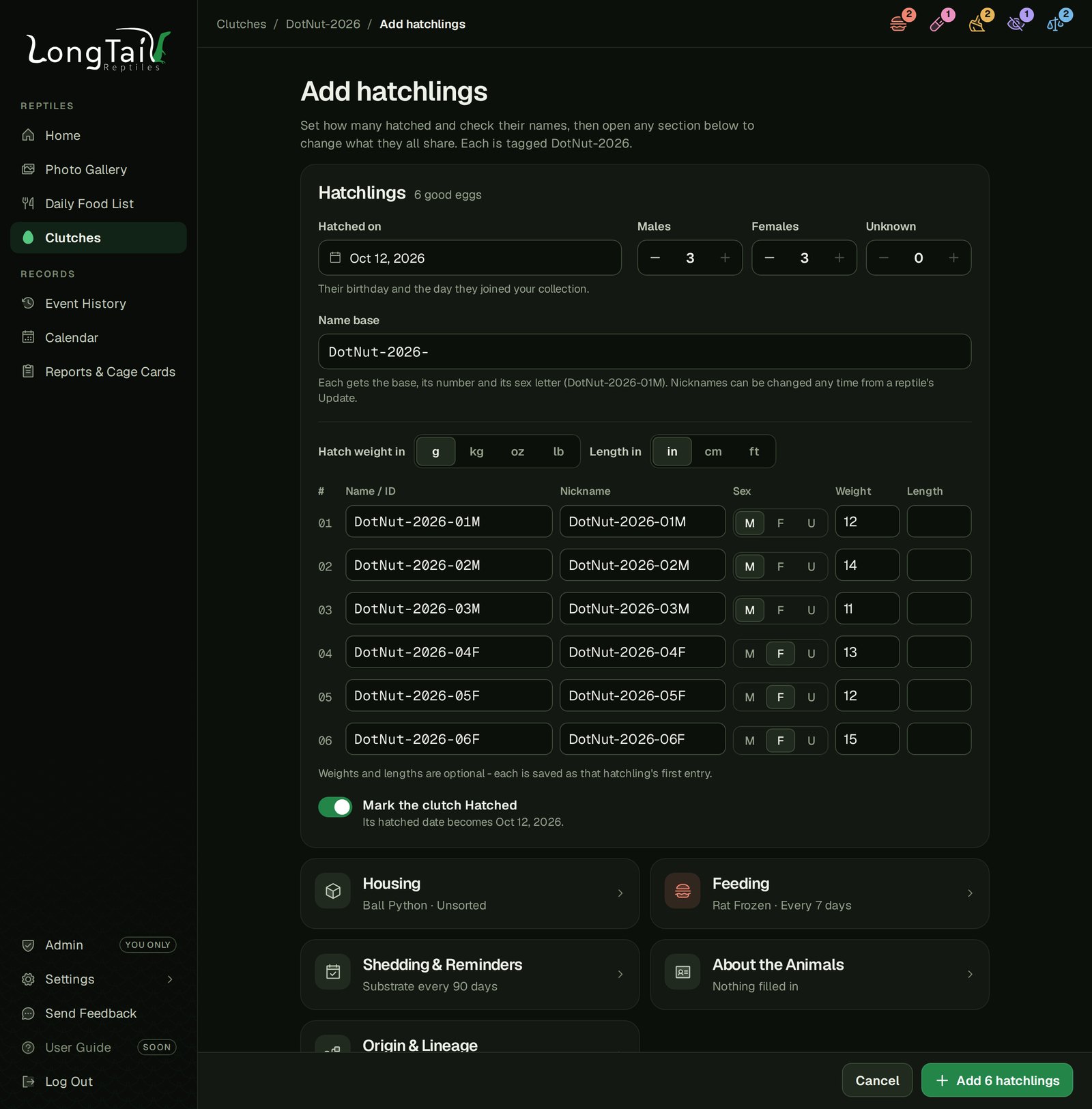
When the time comes to convert the eggs to hatchlings, SnekLog makes this easy. "Add hatchlings" adds the whole roster in one go. Enter how many males, females and unknowns, and each gets a name generated from the clutch name. You can add in hatch weights and lengths go in as you go, as well as configure housing, feeding, and other information from the start.
Event History
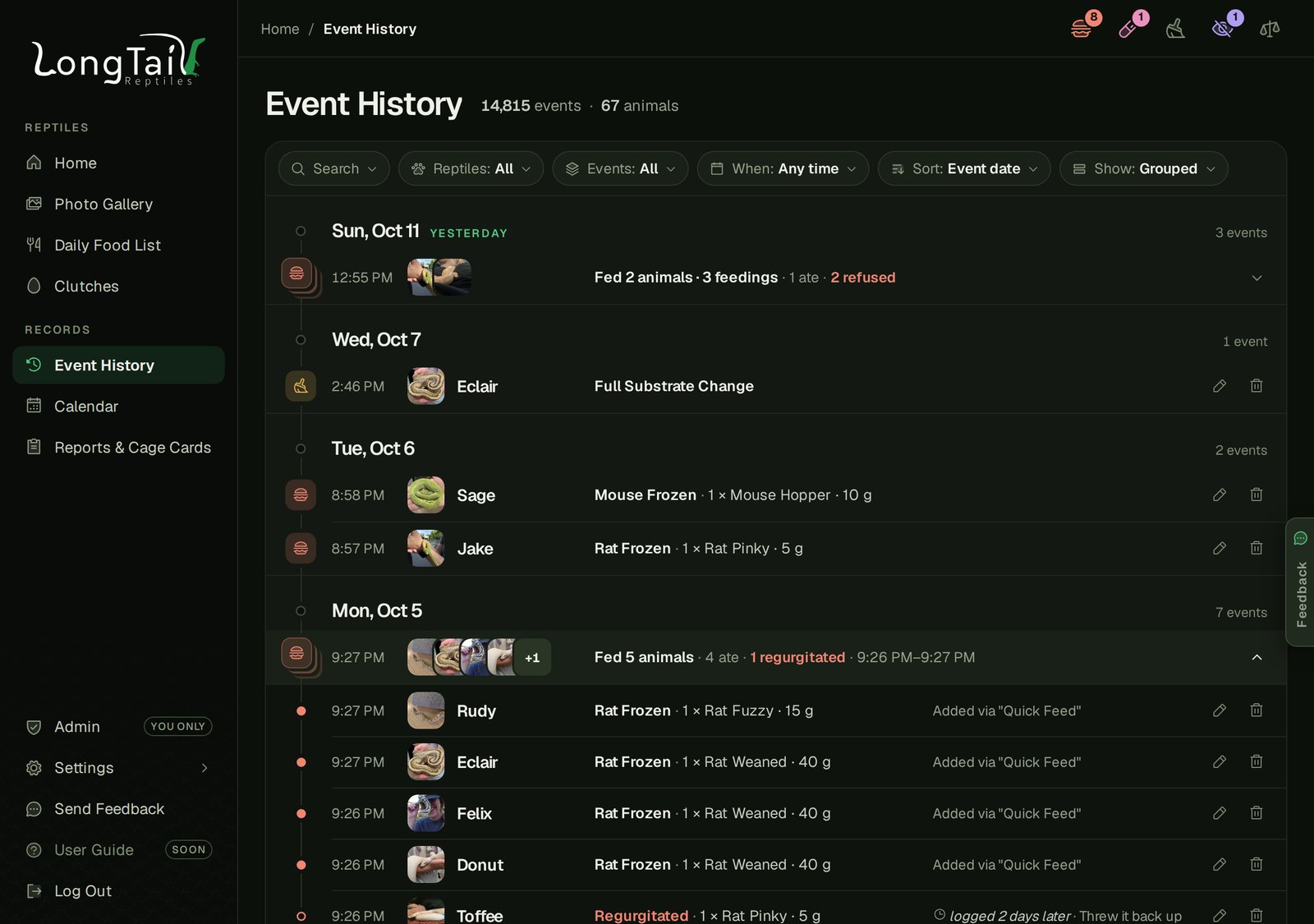
Event History (Records) shows every event you've ever logged, newest first. You can filter by animals, event types and dates. You can also search which can find events by they notes too so you can track down that obscure event you vaugley remember. Bulk feeding events get grouped together which you can expand to edit or delete individual events. You also have the option to delete the entire grouping of events just in case you made a mistake and didn't catch it with the undo button.
Reports, Certificates and Cage Cards
SnekLog gives you the option to print Reports, Sales Certificates, as well as Cage Cards
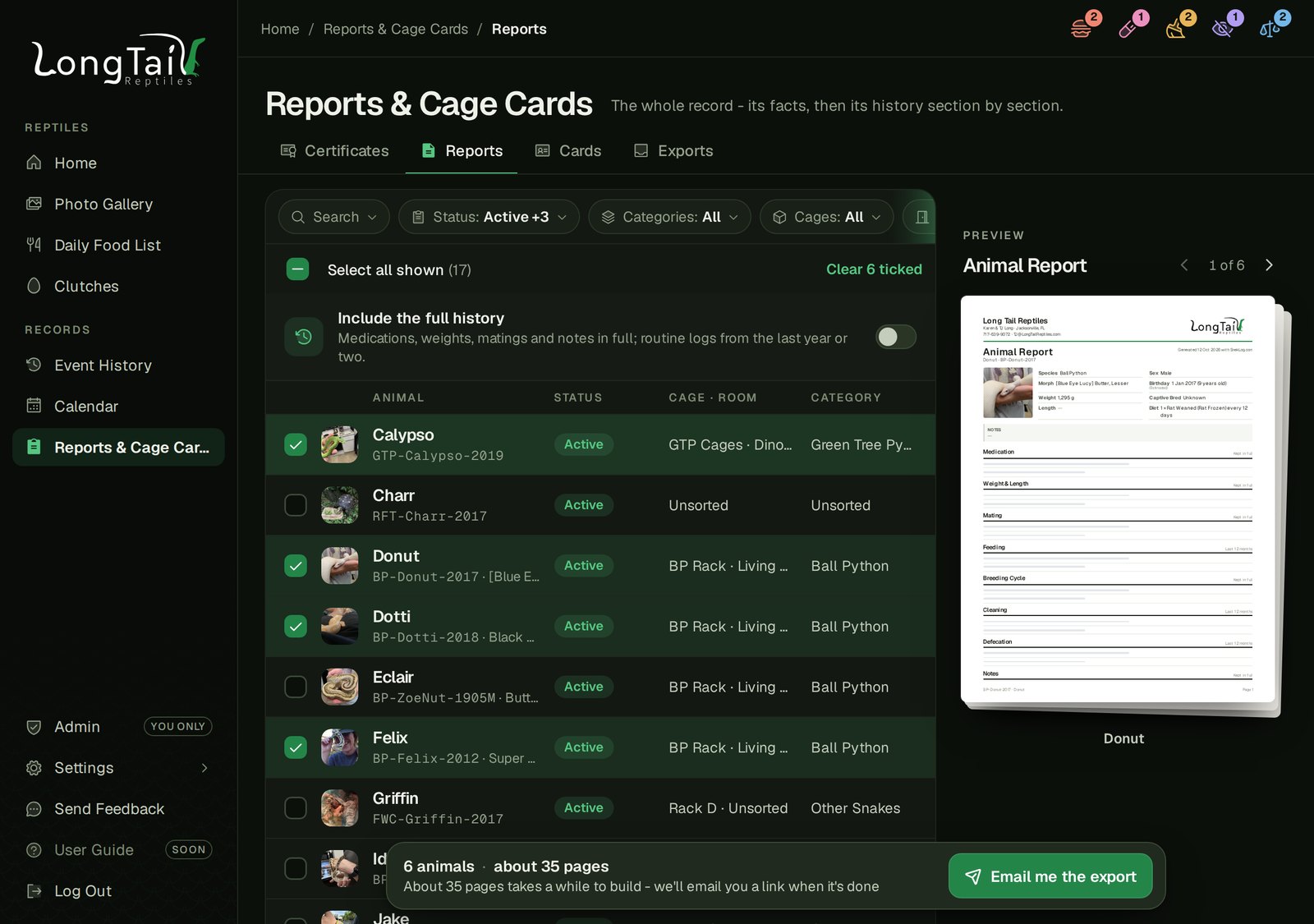
Sales Certificates print one page per animal, using your logo and any details set on Settings › Branding & Sales Cards. The Animal Report always prints out medications, weights, matings and notes in full, but gives you the option to trim routine care to the last 12 months and sheds to 2 years. "Include the full history" prints everything, for when an animal goes to a new home or if you need to take an entire history to a vet for diagnostic purposes.
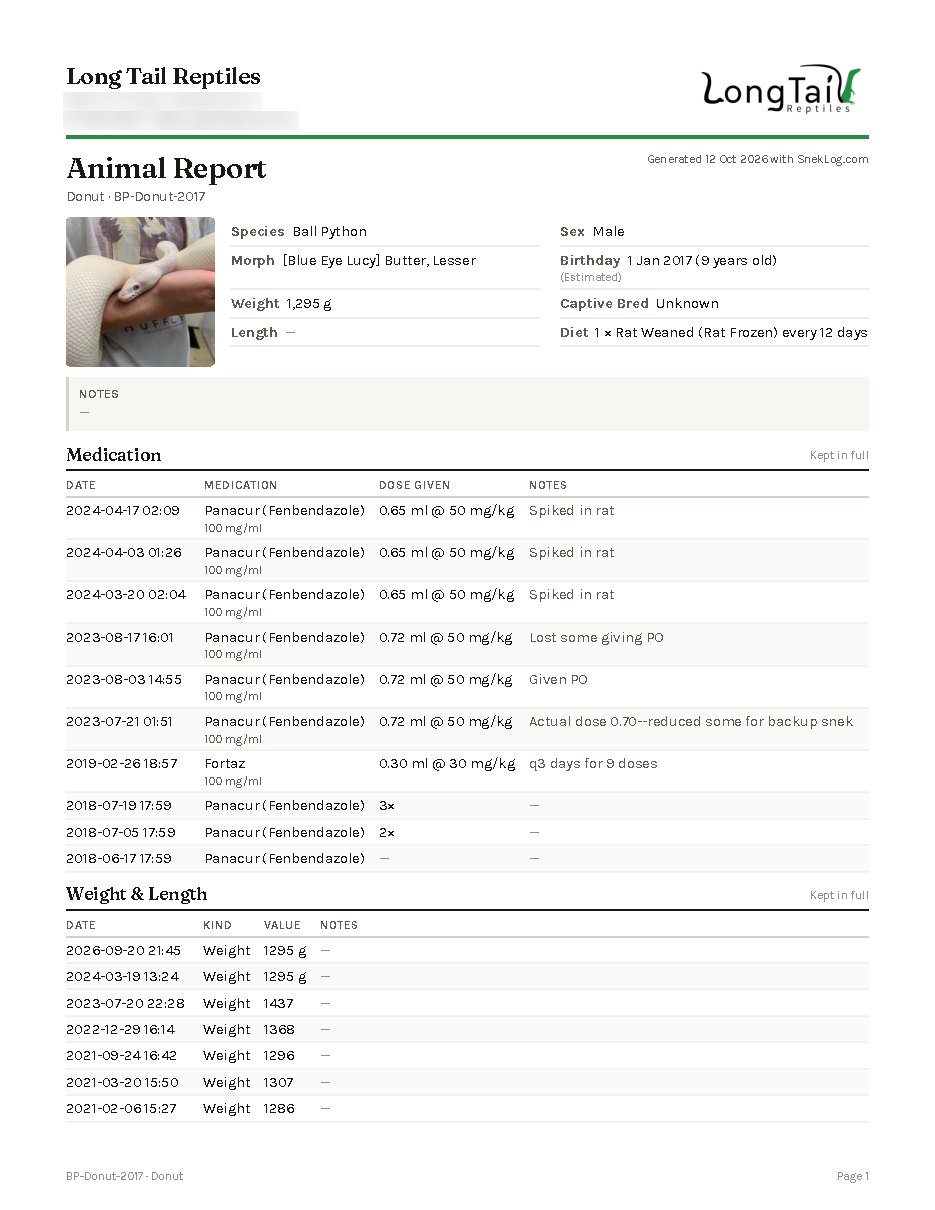
If a report is small, it will generate and immediatly be available to download. A whole collection report is built in the background and emailed as a link from [email protected] when its ready. You also have the option to check the Exports tab for up to 3 days to download any generated reports.
Cage Cards
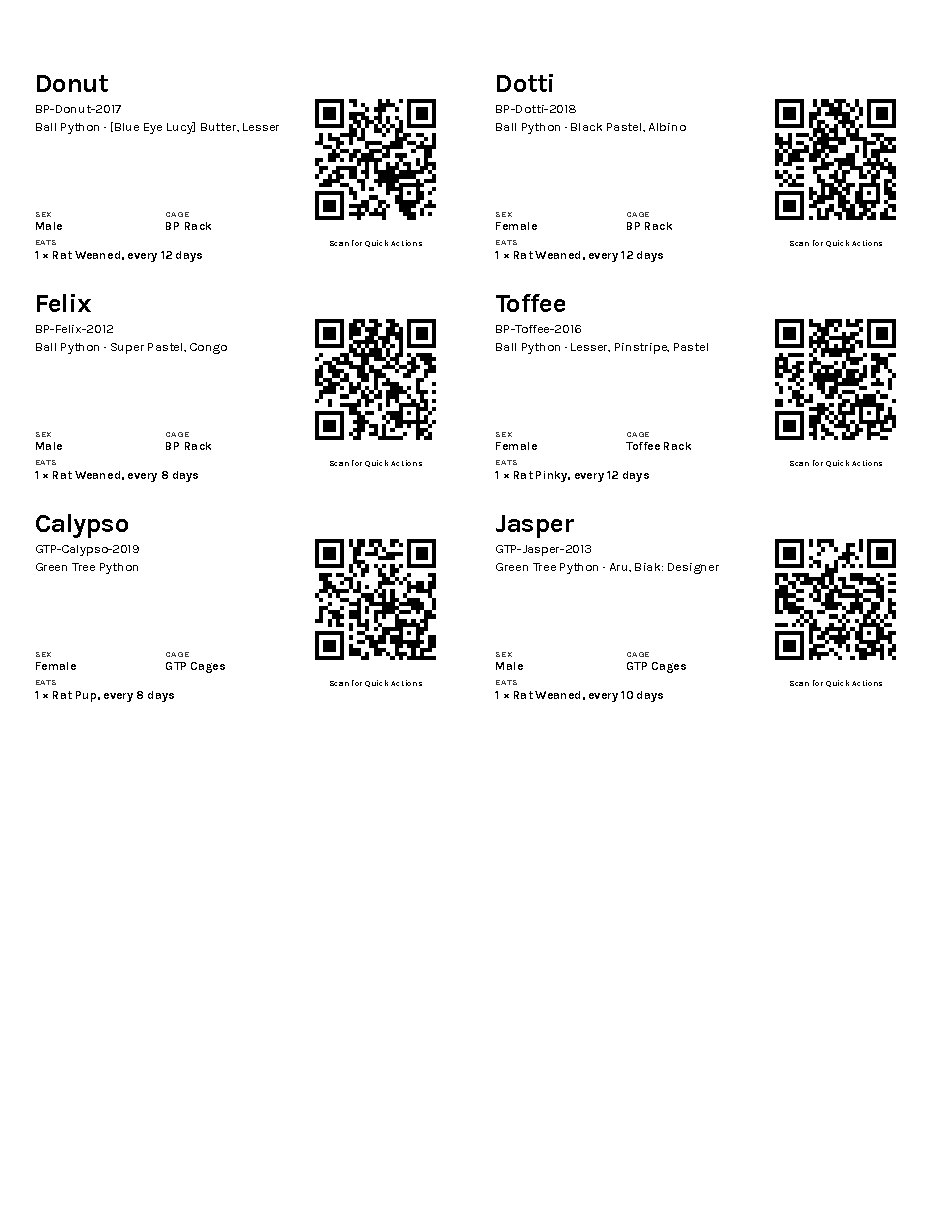
The Cards tab prints label-sized cards: Avery 5160 (30 rack labels a sheet), Avery 5163 (10 tub labels a sheet, the default), 3×5 index cards (4 a page, with cut lines and, if you tick it, the photo), or one card a page for a label printer.
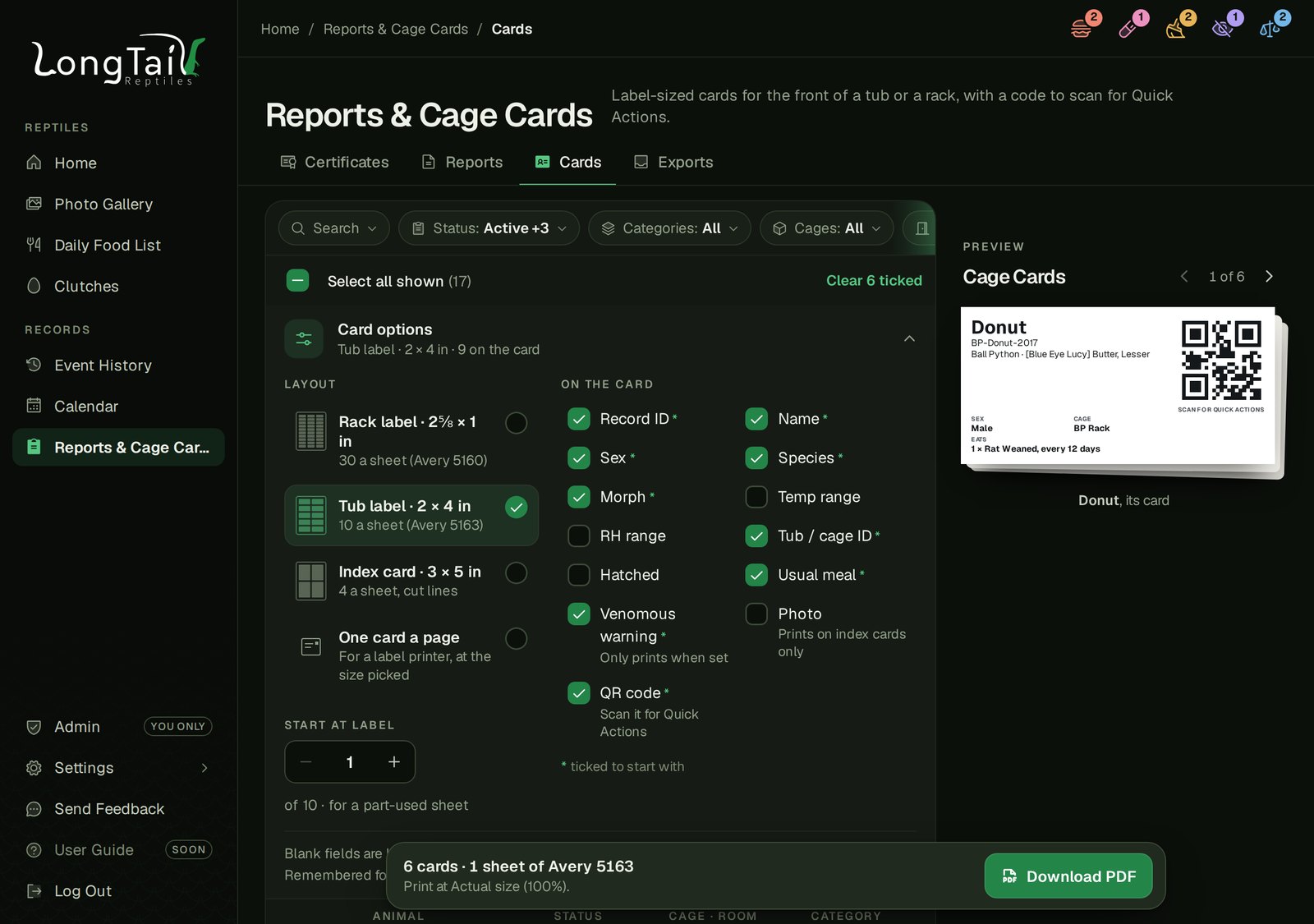
Tick the fields you want, and "Start at label N" picks up a part-used sheet. Cards carry a QR code (on unless you untick it) that opens Quick Actions, and its link points at SnekLog's permanent address, so cards printed during the beta keep working after the move. Each animal's page can print its own card too.
Settings
Settings has seven pages: Account, Preferences, Events & Categories, Food, Reptile Categories, Cages & Rooms, and Branding & Sales Cards.
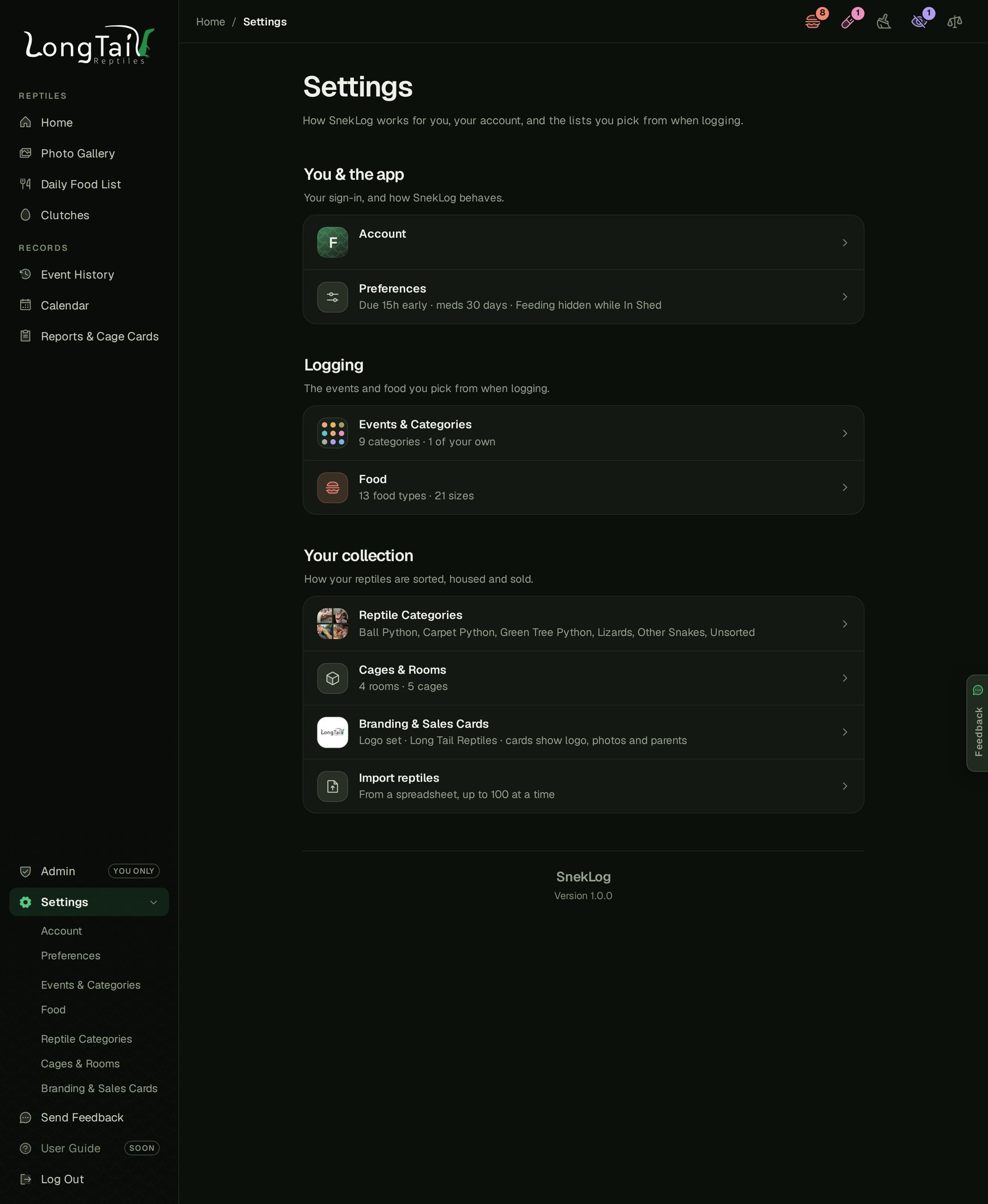
A few things worth knowing:
- Reminder windows set how far ahead of due an animal is flagged, and how far ahead "On Medication" shows a coming dose.
- Any cleaning type can reset the cleaning reminder, not just Full Substrate Change.
- Food sizes are grouped by the word that links them to your food types, with a note of which types offer each group.
- Friendly notes, not rules. A food size that weighs oddly gets a note ("3 g is light for a rabbit") and nothing more.
- Careful deletes. A delete that would take logged events with it makes you type the name. Anything else moves to "Unsorted".
Preferences also holds the theme and the trip planner's defaults.
I cannot wait to get this new version of SnekLog out to everyone. It's getting very close but needs a bit more polishing and bug fixing. It has a lot to offer and I've finally been able to make SnekLog as good as it should be. I went through every peice of feedback I've gotten since 2019 when SnekLog first launched and tried to incorporate everything I could. I'm expecting to have the new version deployed before the end of October. I will put a notice up in the old app when I finalize a date/time as getting everything deployed will take a handful of hours.
As always, thanks for using SnekLog! TJ